

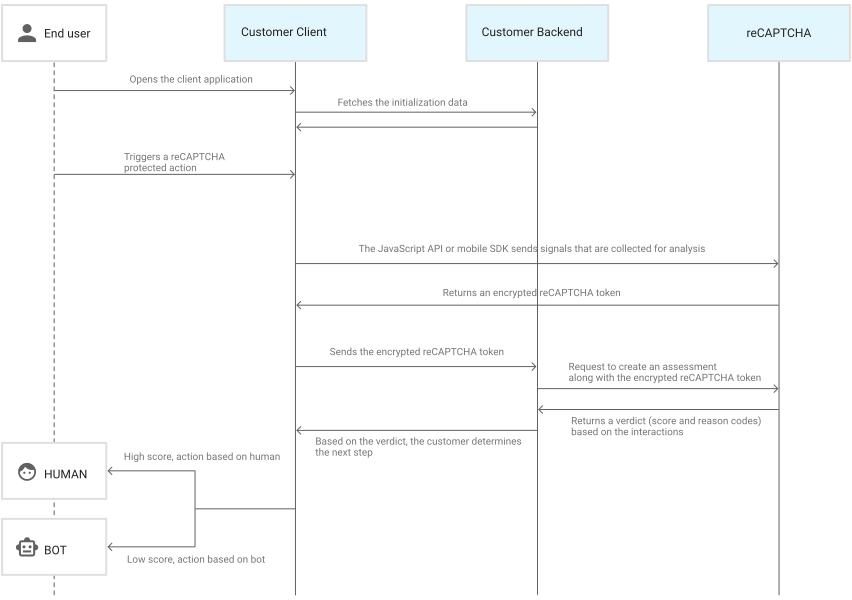
Constant Google CAPTCHA appears when Google’s systems detect what they classify as unusual or bot-like traffic coming from your device or network. The most common triggers are VPN and proxy services, browser extensions sending hidden background requests, shared IP addresses with poor reputations, and unusually fast search behavior. The fix usually comes down to disabling VPN, clearing cookies, removing suspicious extensions, and restarting your router.
Key takeaways:
- VPN and proxy services are the single most common trigger for repeated CAPTCHAs
- Your IP address reputation matters more than your personal search behavior
- Extensions you forgot you installed may be sending automated requests in the background
- Incognito mode makes you look more suspicious to Google, not less
- IP reputation tools like whoerip.com let you see exactly what Google sees when you connect
How to Fix Constant Google CAPTCHA: Step by Step
Working through these in order resolves the problem in the majority of cases.
Step 1: Slow down and actually solve the CAPTCHA properly
Not glamorous, but worth trying first. If you have been searching very fast, open fewer tabs at a time and reduce your query pace. Solve the CAPTCHA carefully, do not click randomly through the image grid and do not refresh mid-challenge. For light cases where behavior alone triggered the system, this is sometimes enough.
Step 2: Disable VPN, proxy, and relay services completely
Turn off VPN entirely on your computer and phone, not just pause it. Disable VPN browser extensions too. If you are behind a corporate proxy, turn it off temporarily. On Apple devices, navigate to Settings, your profile, iCloud, and disable Private Relay.
Restart the browser after, then test Google from scratch. A substantial share of constant CAPTCHA cases end right here.
Pro Tip: If disabling VPN stops the CAPTCHAs, the problem is your VPN provider’s IP pool reputation, not your behavior. You can try switching to a different server location within the same service, which assigns a different IP. But if the provider’s entire address range is flagged, location switching may only delay the problem. Use whoerip.com to check whether your new IP is also flagged before deciding whether to keep using that provider.
Step 3: Clear cookies and browser cache
Google uses cookies to build behavioral context that distinguishes humans from bots. Clearing them removes any flag attached to your current session and forces a clean start.
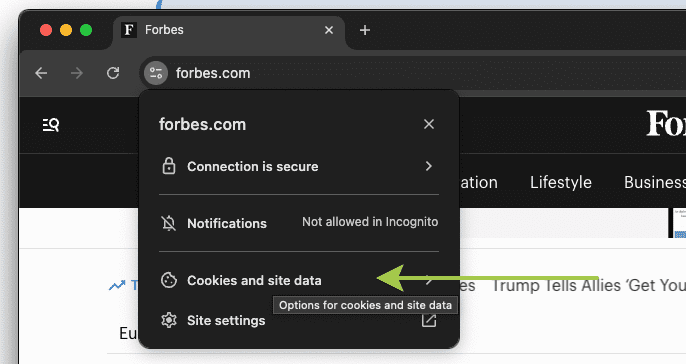
In Chrome, go to the three-dot menu, select More Tools, then Clear Browsing Data. Use the Advanced tab, choose All Time, and clear history, cookies, and cached files. Restart the browser after.
Step 4: Disable all extensions, then re-enable them one by one
Turn off every single extension in the affected browser. Restart. Test Google. If the CAPTCHAs stop, re-enable extensions one at a time, testing after each, until they return. That extension is what was sending bot-like signals.
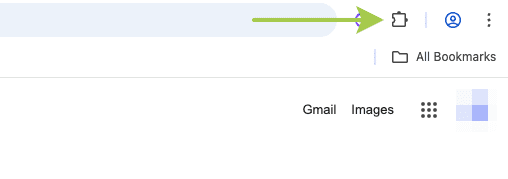
Pro Tip: The fastest way to check all your extensions is to open the extensions page directly in the browser address bar. No menus needed.
Chrome:
chrome://extensions/Opera:
opera://extensions/Firefox:
about:addonsEdge:
edge://extensions/Brave:
brave://extensions/
Pay specific attention to SEO tools, rank trackers, price comparison extensions, and anything that monitors or interacts with web pages automatically.
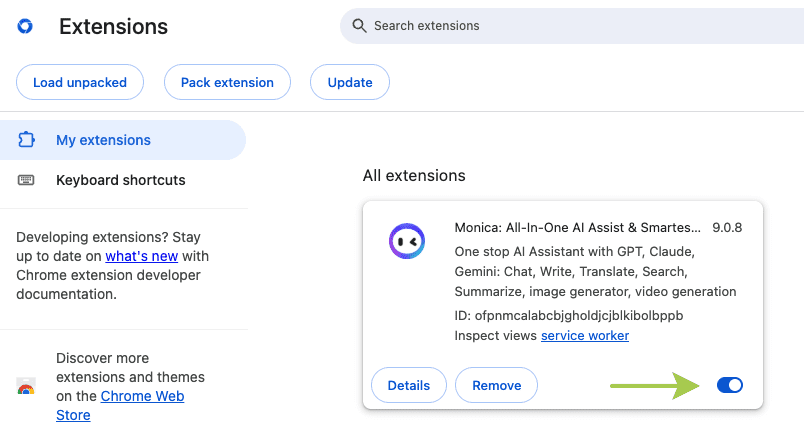
Also the extensions you installed ages ago and do not remember putting there.
FYI: Extensions installed months ago and long forgotten are frequently the worst offenders. They keep running, keep sending requests, and produce no visible sign of activity because they operate entirely in the background. Want to understand how much your browser reveals without any extensions at all? Check how to change your browser fingerprint to see what signals browsers expose by default.
Step 5: Test in a different browser or browsing mode
Open a browser you rarely use, with no extensions installed. If Google works normally there, the issue is specific to your usual browser’s configuration. Also worth testing: the difference between regular and incognito mode. CAPTCHA appearing only in incognito strongly suggests the cookie-free environment is the trigger. For a more detailed breakdown of what incognito actually does and does not protect, see our guide on what incognito mode does.
Step 6: Restart your router
If your ISP uses dynamic IP assignment, turning the router off for five to ten minutes usually results in a new external IP address on restart. Test immediately after, in one clean browser with no VPN or extensions, to isolate the variable. If CAPTCHA disappears, the previous IP had a reputation problem. Not sure what address your router is currently using? Start with how to find your router IP address, then follow up with a full guide on how to change your IP address if the problem keeps coming back.
Step 7: Scan for malware
If the above steps have not resolved it, run a full system scan. On Windows, start with Windows Defender. On Android, look for unfamiliar apps, particularly anything installed from outside the official app store. On macOS, use a reputable security tool if you have any reason for suspicion. After removing anything flagged, restart and retest.
Step 8: Sign out of your Google account and test
Log out of Google entirely, clear cookies one more time, and try searching without being signed in. Then sign back in. If the issue exists only under your specific account, check which third-party apps have access to it and revoke permissions for anything you do not recognize.
Why Your IP Reputation Matters More Than Your Search Behavior
Most troubleshooting guides stop at “disable VPN and clear cookies” without explaining why that actually works. The real answer is IP reputation.
Google sees your IP before it sees anything else. If that IP has been used for scraping or spam by previous users, it arrives already flagged, regardless of what you personally do with it. VPN pools, mobile carrier addresses, and some ISP ranges are especially prone to this. Check whether your IP is blacklisted before spending time on anything else.
Pro Tip: Run whoerip.com before and after switching VPN servers or disabling a proxy. The change in your IP reputation score often explains exactly why Google was treating your traffic as automated. A flagged IP is not a personal accusation. It is just math: too many other users on that address were generating bot-like activity, and the whole pool got penalized.
What to Do When Constant Google CAPTCHA Just Will Not Stop
Some situations are genuinely stubborn. If you have worked through every step above and constant Google CAPTCHA still appears, the remaining explanations are:
- Your ISP’s entire IP range has a poor reputation with Google, affecting all customers on that provider
- Other devices on your network are generating suspicious traffic, smart speakers, old tablets, cheap IoT gadgets that came with compromised firmware
- You keep reconnecting to a VPN service with a systematically flagged address pool
In these cases, the practical options are limited but real. Connect without VPN or proxy on a completely clean browser. Give it a few days. IP reputations do recover, particularly once suspicious activity from that address stops. Alternatively, speak with your ISP directly about whether their address range has a documented flagging issue with Google. If you need a longer-term solution, read about how to hide your IP address using methods that do not rely on shared VPN pools.
Patience works more often than people expect. Google’s system is not designed to permanently block real users. Once the suspicious traffic patterns stop, CAPTCHA frequency tends to drop on its own over a few days.
Conclusion
Constant Google CAPTCHA is almost never random. The overwhelming majority of cases come down to IP reputation issues from VPN or proxy use, browser extensions making silent background requests, or shared address pools with histories of bot activity. The fix is usually achievable within a single troubleshooting session: disable VPN, clear cookies, remove suspicious extensions, restart the router.
Before anything else, check what Google actually sees when you connect. A quick look at your IP status on whoerip.com can immediately confirm whether you are dealing with a reputation problem, a leak, or a flagged address, and point you directly to the cause instead of guessing.
Frequently Asked Questions
Why does Google show CAPTCHA even when I only search a few times a day?
Even a small number of searches can trigger CAPTCHA if they come from an IP with a bad reputation or if your browser extensions are sending hidden requests. Google does not count only your personal queries. It evaluates the full picture: IP history, session behavior, cookies, VPN use, and background requests from installed extensions.
I restart my router, get a new IP, and CAPTCHA still appears. What is happening?
Two possibilities. Your new IP may be in the same address range, which could also be flagged with Google. Or the issue lives in your browser configuration, not the IP at all. Test in a completely clean browser with no extensions and no VPN immediately after restart to separate the two variables.
Can I turn CAPTCHA off completely?
No. CAPTCHA is controlled by the website or service, not the user. What you can control is how your connection appears to Google's detection system. Clean IP address, no VPN on flagged servers, no suspicious extensions, normal browsing speed. When those conditions are met, the system stops triggering the challenge. Separately, if you are dealing with CAPTCHAs on other platforms, our guide on how to bypass Google CAPTCHA covers additional approaches worth knowing.
Why does CAPTCHA appear in one browser but not another?
That specific browser's setup is sending signals that trigger Google's detection. Common culprits: anti-fingerprinting settings, a modified user agent string, aggressive ad blockers, or a particular extension. A fresh browser installation with no add-ons almost always behaves normally with Google.