
If you’ve ever tried to host a website, set up remote access, or simply understand your network better, you’ve probably wondered how to get a public IP address. At first it may sound complicated, but the core idea is actually straightforward.
Before moving on, you can quickly check your current public IP using this tool: whoerip.com.
This guide breaks everything down in simple terms. You’ll learn what a public IP address is, how it differs from a private IP, how to get one from your ISP (or through alternative methods), and how to use it for things like hosting a website, configuring remote desktop access, or any other tasks that require a publicly reachable address.
Let’s make it clear.
What is an IP address that is public?
The outside world uses a public IP address to get to your device or network.
When your computer or router connects to the internet, it does so using a unique address. This is like the street address of your home, but for online traffic. That is the IP address that everyone can see. A public IP is different from a private IP address, which is only used inside your home or office network (such 192.168.1.1).
Your private IP is like the number of your apartment, while your public IP is like the street address of the building. Your public IP is what others need to send you a package.
Different kinds of Public IP Addresses
If you want to receive a public IP address on purpose, you need to know the difference between the different types.
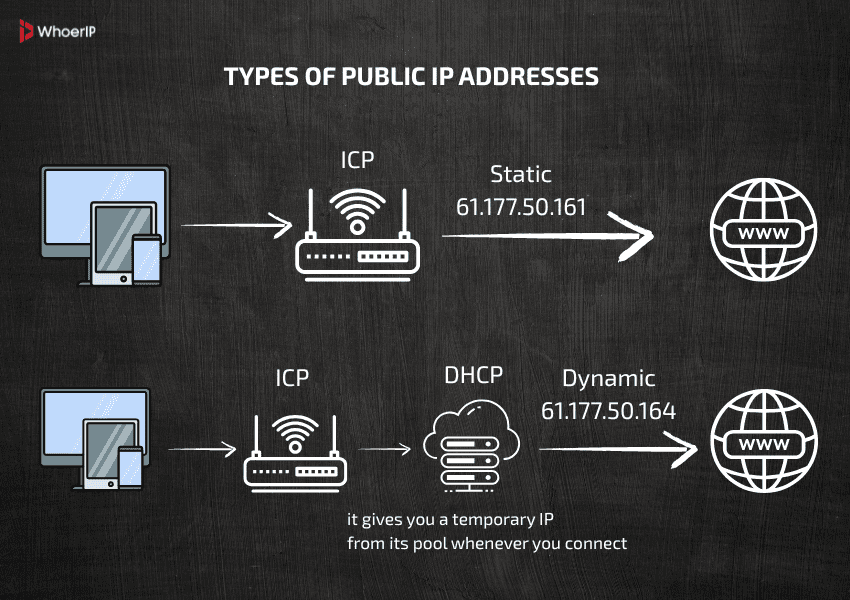
1. Public IPs that change over time
Your Internet Service Provider (ISP) gives you these, and they can vary from time to time. This is the default type for most home users.
- Pro: Simple and free—just plug in your router.
- Con: It can change, which makes it hard to host or access remotely unless you utilize a dynamic DNS provider.
2. Public IPs that don’t change
This is a public IP address that stays the same. You set it up yourself, and it stays the same until you or your ISP modify it.
- Pro: Good for accessing servers, hosting, or remote access.
- Con: It usually costs more. You need to ask your ISP for it.
Just so you know, most people who use the internet at home get a dynamic public IP unless they ask for a different one. If you’re not sure, restart your router and check to see if your IP address changes. If it does, it’s dynamic.
How to Obtain a Public IP Address
Yes, you probably already have one. But if you want a dedicated or useable public IP address, these are your main choices.
1. Check your current IP
Visit What Is My IP Address or search for “what is my IP” on Google. That’s the public IP address you have right now.
Your ISP has given you a dynamic public IP if you are on a home network. You can use this for simple stuff like browsing or online gaming, but if you’re wondering how to obtain a public IP address that stays fixed — like for hosting or remote access — keep reading.
2. Ask your ISP for a static IP address.
You will need to get in touch with your internet service provider if you require a public IP that doesn’t change.
Here’s what you should do:
- Get in touch with your ISP’s customer service by phone or email.
- Request a public IP address that doesn’t change.
- They might ask for a monthly fee.
- You will probably have to set it up on your modem or router by hand.
Tip: Be clear with your ISP about what you need it for. If you say “I want to host a game server from home” or “I need a fixed IP for remote work,” it will help minimize confusion and might even speed things up.
Keep in mind that having a public IP address means your network is more exposed to the outside world. If not properly secured, it can open doors to unwanted access attempts or even targeted attacks. Curious what someone could actually do with your IP? Here’s a helpful read on what someone can do with your IP address — it’s worth understanding the risks so you can take the right precautions.
3. Use a Hosting Service (for websites)
It could be easier to hire a virtual server (VPS) or use shared hosting if you want a public IP address to host a website. These services come with public IPs.
This saves you the trouble of setting up your home router and worrying about firewalls or NAT.
4. Port Forwarding and Dynamic DNS (If You Can’t Get a Static IP)
Let’s say you can’t get a static IP or your ISP won’t give you one. You can still get around this:
- Use your changing public IP
- Configure port forwarding on your router
- Use a dynamic DNS provider like No-IP or DuckDNS to connect a hostname to your IP address, which changes all the time.
It may be a little complicated, but it works.
Popular Dynamic DNS Providers
Here are a few well-known ones:
| Provider | Free Plan Available? | Notes |
|---|---|---|
| No-IP | Yes (with limitations) | Very popular, offers free subdomain like yourname.ddns.net. |
| Dynu | Yes | Simple interface, good for beginners. |
| DuckDNS | Yes | Open-source, supports custom scripts — great for DIY setups. |
| DynDNS | No (now paid only) | Was the most popular, now commercial only. |
Many routers support built-in Dynamic DNS integration — just log into your router settings and look for the DDNS section. That way, the router handles the updates automatically.
Tips When Using a Public IP Address
Getting a public IP is only the first step. Here are some other things to think about: security, router configuration, and whether your ISP allows hosting services.
Understanding how to obtain a public IP address is useful, but managing and protecting that access is just as important — especially if you’re exposing devices or services to the internet.
- Protect it: Public IPs let anyone into your network. Be sure to utilize firewalls and turn off services you don’t need.
- Find out what your NAT settings are: Network Address Translation (NAT) is a feature that many home routers employ to prevent traffic from outside. To make services operate, you’ll need to set up port forwarding.
- Be careful with your data: Hosting services from home could break your ISP’s rules or use up all of your data.
Just so you know, public IPs can be tracked. If you care about your privacy, read our post on How to Hide Your IP Address.
How to Get a Public IP Address
You can’t usually “buy” a public IP like you would a product, at least not directly. In place of it, you:
- Get it from your ISP (ask for a static IP)
- Rent a server or use cloud hosting services like AWS or Linode.
- Buy IP ranges from a regional internet registry (RIR), but only if you are a big company. We’re talking about thousands of dollars and official permission.
If you don’t need to manage a lot of infrastructure, the best thing to do is ask your provider for one or hire a hosting server with a public IP address.
Conclusion: So, How Do You Actually Obtain a Public IP?
In short, you probably already have one, but it changes all the time. The best thing to do if you need a fixed public IP for a server, camera, or remote access is to ask your ISP for one or utilize dynamic DNS to get around the change.
If you know how to get a public IP address, you can better control your online presence, whether you’re hosting something, working from home, or just learning how networks work.
Frequently Asked Questions
How to make my IP address a public web address?
You can point a domain to your public IP using DNS settings. If it’s dynamic, use a dynamic DNS service to keep it updated. You’ll also need to set up port forwarding on your router.
How do you get a public IP address?
Most people already have one via their ISP. For a static one, contact your provider and request it specifically.
How to get the public IP of a site?
You can ping the domain or use nslookup or dig commands. Tools like nslookup google.com will show you the IP behind a domain.
How to get user public IP?
On a website, you can use server-side code (like PHP, Node.js) or JavaScript with a service like https://api.ipify.org. Be mindful of user privacy and consent.
Is 192.168.1.1 a public IP address?
No, it’s a private IP used inside local networks. It’s not reachable from the public internet.
Is public IP free?
Dynamic ones, yes. Static IPs often cost extra and depend on your ISP’s policy.
Who gives public IP addresses?
Your ISP does — they assign you one when your device connects to the internet.
What makes an IP public?
It’s routable on the open internet and not part of private IP ranges like 192.168.x.x, 10.x.x.x, or 172.16.x.x to 172.31.x.x.
Who assigns my public IP address?
Usually, your ISP. In cloud environments, the provider (like AWS) assigns it.
Who owns a public IP address?
ISPs, hosting providers, or large organizations lease or own IP blocks from regional internet registries (like ARIN, RIPE, APNIC).
How to make a home computer “public” with an external IP?
The router holds the public IP and your devices sit behind NAT. To expose a specific PC, configure port forwarding on the router (e.g., port 80 for your PC).
Can I assign the public IP directly to my PC’s NIC
No. The ISP assigns the public IP to the router. Your PC gets a private IP; inbound traffic is routed via port‑forwarding rules.
What if the public IP changes often?
Use dynamic DNS (e.g., DuckDNS). You get a stable hostname while the service updates it to the current IP.
Is it safe and allowed by the ISP?
Exposing services invites attacks; keep everything patched and locked down. Some ISPs disallow public servers.
How to keep the target PC’s internal IP from changing?
Set a DHCP reservation or static internal IP on the router.