You might think the best ad blocker for YouTube is simply the one that hides the most ads. In 2026, that’s only part of the story. Browser platform rules (especially Chrome’s Manifest V3), device type, and YouTube’s own anti-adblock detection all affect whether a blocker keeps working over time.
That’s why the same extension can work well for one user and fail for another. The tool matters, but so does where and how you use it.
A note before we start: YouTube states that blocking ads may breach its Terms of Service and that playback may be limited unless you allow ads or subscribe to YouTube Premium. This guide covers how blockers work, why they sometimes stop working, and what to check when they do.
What is an ad blocker for YouTube?
An ad blocker for YouTube is a browser extension, app, built-in browser feature, or network-level filter that tries to stop YouTube ads from loading or displaying. It may block pre-roll, mid-roll, banner, and overlay ads, along with tracking scripts and some third-party ad requests.
A typical ad blocker works by using filter lists — rules that tell the blocker which scripts, domains, or page elements to block or hide.
YouTube ads are harder to block than ordinary banners because they are tied directly to the video player, the user session, and playback logic. The same blocker that handles website banners well can still struggle on YouTube.
Best ad blocker for YouTube in 2026: what actually matters
There is no single best option for every device. The best ad blocker for YouTube depends on where you watch YouTube.
| Use case | Practical option | Limitation |
| Desktop browser | Strong content blocker such as uBlock Origin where supported | May be limited on some Chromium browsers |
| Chrome desktop | MV3-compatible blockers such as uBlock Origin Lite or other Chrome-compatible blockers | May have fewer advanced filtering features |
| Firefox desktop | Full-featured content blockers often remain more flexible | Still depends on YouTube changes |
| Android browser | Browser with built-in blocking or compatible extensions | YouTube app ads are harder to control |
| iOS/iPadOS | Safari content blockers or YouTube Premium | System restrictions limit blocking |
| Smart TV | YouTube Premium or network-level filtering | Network blocking can break playback |
| Family/shared device | YouTube Premium | Paid option, but most stable |
Chrome’s extension platform has moved toward Manifest V3, which changes how extensions can intercept and filter network requests. uBlock Origin Lite, for example, is designed as an MV3-based content blocker for Chrome-compatible environments.
Firefox has taken a different approach and says it continues supporting both blockingWebRequest and declarativeNetRequest, giving extension developers more flexibility.
In simple terms: Chrome-compatible blockers may be easier to install but more limited. Firefox-based blockers may offer more control, depending on the extension.
👉 Looking for the right metered billing solution? Check out this guide to the top software for metered billing.
How YouTube ad blockers work
Most YouTube ad blockers use one or more of these methods.
1. Network request blocking
The blocker stops known ad-related domains or scripts from loading.
Example:
- You open a video.
- YouTube tries to load ad resources.
- The blocker matches those requests against a filter list.
- Matching requests are blocked.
This works well when ad requests are predictable.
It works less well when YouTube changes how ads are served.
2. Cosmetic filtering
The blocker hides visible elements on the page.
This can remove:
- Ad containers
- Banners
- Pop-ups
- “Promoted” modules
- Overlay boxes
Cosmetic filtering improves the visual experience, but it does not always stop the ad request itself.
3. Script blocking
Some blockers stop or modify scripts that control ad delivery.
This is more powerful but also more fragile.
If a script is needed for normal playback, aggressive blocking can cause:
- Black screen
- Infinite loading
- “Ad blockers are not allowed” warnings
- Broken comments or recommendations
- Videos refusing to play
4. Tracker blocking
Some blockers also reduce tracking scripts.
This is useful for privacy, but it does not make you anonymous.
Your IP, DNS resolver, WebRTC behavior, logged-in Google account, cookies, device signals, and browser fingerprint can still reveal information.
How to use YouTube Ad Blocker extension
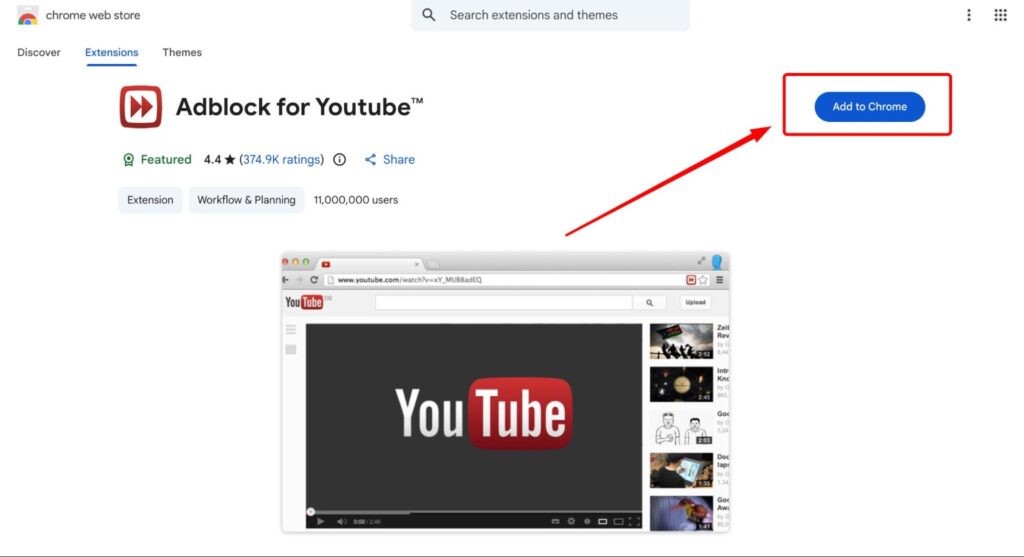
Step 1: Open the Chrome Web Store and search for an extension
Go to the Chrome Web Store. In the search bar for Extensions and Themes, type “AdBlock for YouTube”. You will see many available extensions. Choose one with a high rating, many users, and positive reviews.
Step 2: Add the extension to Chrome
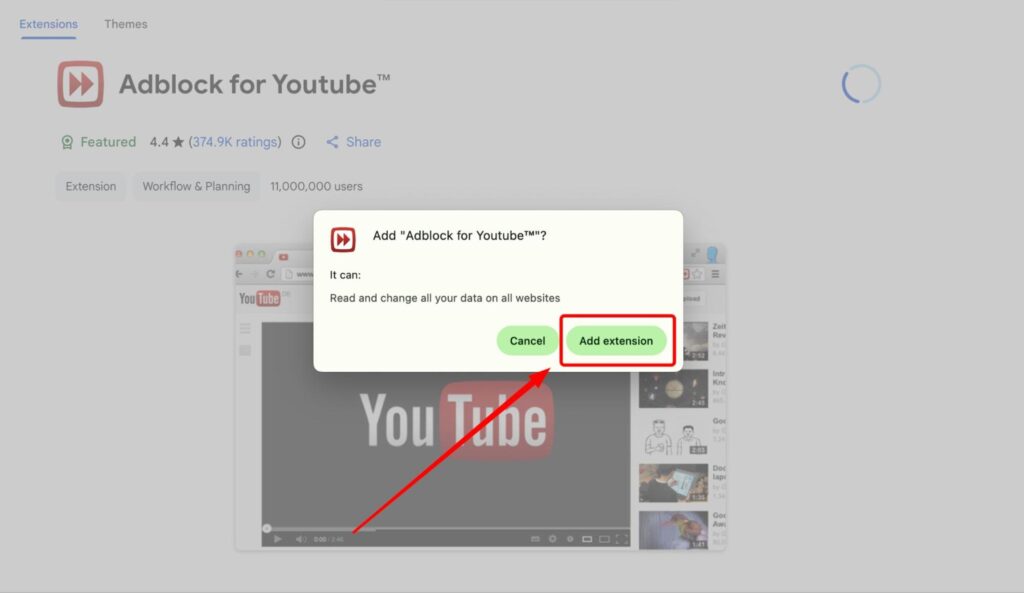
After choosing the extension, click Add to Chrome. A pop-up window will appear asking you to confirm the installation and review the extension’s permissions or policy. Click to agree and continue.
Step 3: Confirm that the extension has been installed successfully
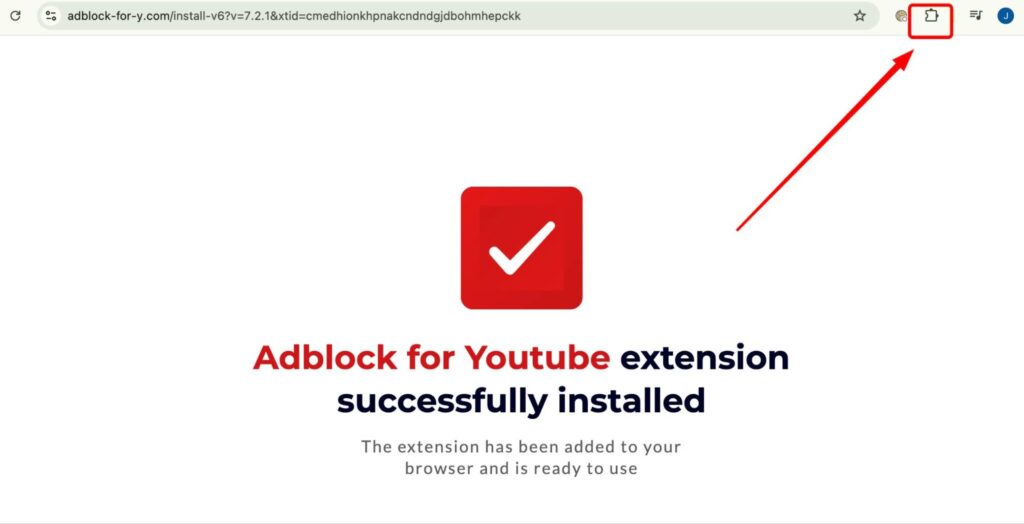
After installation, Chrome will show a success message saying that AdBlock for YouTube has been added to your browser. This means the extension is now available in your Chrome extensions list.
Step 4: Check the extension in your browser toolbar
Look at the top-right corner of your Chrome browser and click the Extensions icon. You should see AdBlock for YouTube listed there. You can pin it to your toolbar if you want easier access.
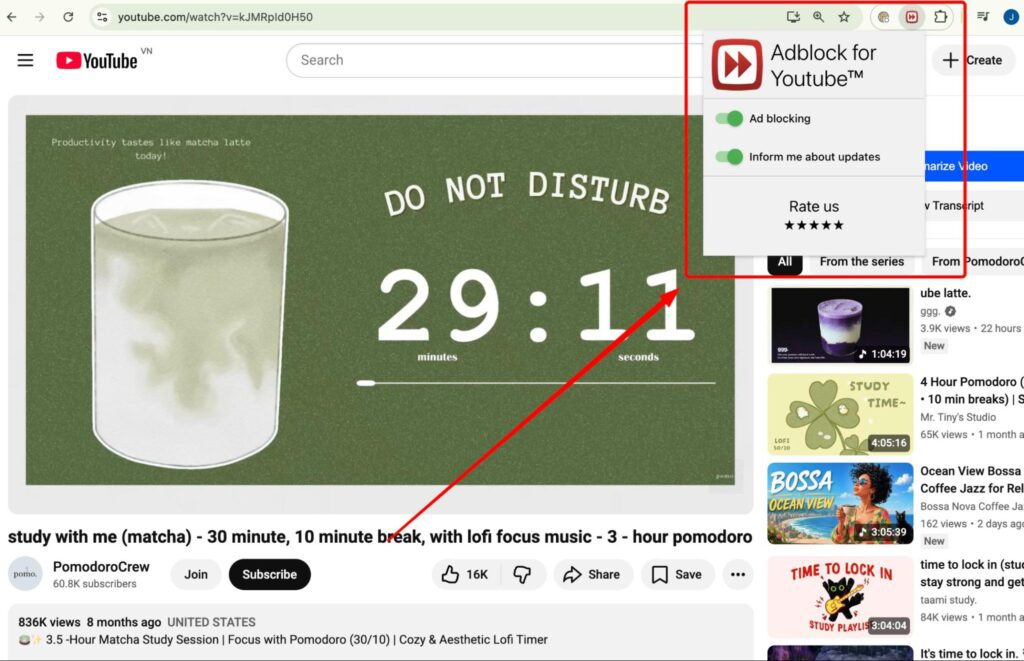
Step 5: Open YouTube and turn on the ad blocker
Go to YouTube and make sure the AdBlock for YouTube extension is enabled. Once it is turned on, it can start blocking YouTube ads while you browse and watch videos.
Why your YouTube ad blocker stops working
YouTube ad blocking is a cat-and-mouse game.
A blocker works. YouTube changes detection. Filter lists update. The blocker works again. Then the cycle repeats.
Common reasons include:
- Outdated filter lists
- Browser extension restrictions
- Conflicting extensions
- Cached YouTube scripts
- Logged-in account experiments
- VPN or proxy IP reputation
- DNS or WebRTC leaks
- Suspicious browser fingerprint
- YouTube testing different anti-adblock behavior by region or account
This is why “best ad blocker for YouTube” lists become outdated quickly. A tool may work today and fail next week.
👉 Need a foreign IP address for browsing, testing, or account access? Read How to Change Your IP Address to Another Country: Simple Methods That Work for practical ways to do it safely and effectively.
Reality vs Myth: YouTube ad blockers in 2026
The strongest ad blocker always wins
The strongest blocker can also break playback. More aggressive filtering may cause YouTube to detect abnormal behavior or fail to load video components.
A VPN hides everything
You think your VPN hides everything, but it may still leak your DNS. Your browser may also expose WebRTC signals or a fingerprint that does not match your IP location.
If YouTube shows CAPTCHA, the ad blocker caused it
CAPTCHA is not always caused by your behavior. Sometimes it starts with your IP. Shared VPN, datacenter proxy, or previously abused IP ranges can trigger extra checks.
An Android YouTube ad blocker works like a desktop extension
A YouTube ad blocker for Android depends heavily on whether you watch through a browser, the official app, a private DNS setup, or another system-level method. The official YouTube app is much harder to filter than a browser tab.
If ads disappear, privacy is fixed
Blocking ads does not automatically fix DNS leaks, WebRTC leaks, browser fingerprint exposure, or IP blacklist problems.
Best ad blocker for YouTube setup for desktop, chrome, firefox, android, iPhone, and iPad
Desktop users
For desktop, browser-based content blockers are usually the most practical.
A good setup:
- Use a reputable browser.
- Install only one main ad blocker.
- Keep filter lists updated.
- Disable duplicate blockers.
- Clear YouTube cache if playback breaks.
- Test DNS, WebRTC, IP, and fingerprint signals on WhoerIP.
Avoid installing random extensions that promise to “block ad for YouTube instantly.” Browser extensions can request broad permissions. A fake or poorly maintained extension may create more privacy risk than the ads you are trying to block.
Chrome users
Chrome users should understand Manifest V3.
Many blockers now use MV3-compatible methods. These can still work, but some advanced blocking behavior may be more limited than older extensions.
If your blocker stops working:
- Update the extension.
- Refresh filter lists.
- Remove duplicate ad blockers.
- Test in a clean browser profile.
- Check whether the problem appears only when logged into YouTube.
Firefox users
Firefox may be a better fit for users who want more flexible extension-based filtering.
Still, no browser guarantees permanent YouTube ad blocking. YouTube changes frequently, and extension rules need updates.
Android users
The phrase youtube ad blocker for android can mean different things:
- Browser ad blocker
- Private DNS filtering
- VPN-based filtering
- YouTube app alternative
- System-wide blocker
- Premium subscription
For most non-technical users, watching YouTube in a browser with a reputable content blocker is simpler than trying to filter the official app.
For stability across devices, YouTube Premium is the most straightforward ad-free option, though it is paid and not a privacy tool.
iPhone and iPad users
iOS is more restrictive. Safari content blockers may reduce ads and trackers in the browser, but they usually do not control ads inside the YouTube app.
Again, YouTube Premium is the most stable ad-free route.
What to check when your YouTube ad blocker stops working
Use this checklist before installing another extension.
Step 1: Update the blocker
Open the extension settings and update filter lists.
Many YouTube issues are fixed by new filter rules.
Step 2: Disable duplicate blockers
Running multiple blockers can cause conflicts.
For example:
- One extension blocks a script.
- Another modifies the page.
- YouTube detects abnormal behavior.
- Playback breaks.
Use one main blocker and test again.
Step 3: Clear YouTube cache and cookies
Old scripts or stored experiments can cause strange behavior.
Try clearing site data for YouTube only instead of wiping your entire browser.
Step 4: Test another browser profile
Create a clean profile with only one blocker installed.
If YouTube works there, the issue may be your extensions, cookies, or profile settings.
Step 5: Test your network signals
This is where many users skip the obvious.
Check on WhoerIP:
- Does your IP match your expected country?
- Is your DNS leaking your real ISP?
- Is WebRTC exposing another IP?
- Is your IP blacklisted?
- Does your browser timezone match your proxy or VPN location?
- Does your device fingerprint look unusual?
If YouTube keeps showing warnings, CAPTCHA, or playback errors, test your IP, DNS, WebRTC, blacklist status, and browser fingerprint on WhoerIP before changing your full setup.
YouTube ad blocker privacy: why VPNs, proxies, and fingerprints still matter
A YouTube ad blocker can help block pre-roll ads, mid-roll ads, banners, overlays, and some tracking requests. However, it does not automatically make your YouTube session private, clean, or consistent.
This is where VPNs, proxies, DNS settings, WebRTC behavior, and browser fingerprints matter.
A VPN or proxy can change your visible IP address, but YouTube may still evaluate other signals when deciding whether your session looks normal. If those signals do not match, you may still see ads, anti-adblock warnings, CAPTCHA, playback errors, or suspicious account checks. YouTube and other platforms may look at signals such as:
- IP reputation
- ASN type
- VPN or proxy patterns
- DNS resolver
- WebRTC behavior
- Cookies
- Login history
- Browser fingerprint
- Device consistency
- Timezone and language settings
For normal users, this means you should not blame your ad blocker for YouTube too quickly. The extension may be working, but your browser or network setup may still leak information or look inconsistent.
For example:
- Proxy IP: Germany
- Browser timezone: Vietnam
- DNS resolver: United States
- WebRTC: local ISP leak
- Browser fingerprint: inconsistent device signals
In this case, the ad blocker may block YouTube ads correctly, but the overall environment still looks suspicious. YouTube may react not because the ad blocker failed, but because your IP, DNS, timezone, WebRTC, and fingerprint signals do not line up.
For QA testers, automation specialists, privacy testers, or legitimate multi-account teams, the goal is not only to block ads. The goal is to keep each browser environment consistent. If one profile appears to come from Germany but still leaks Vietnam timezone, US DNS, or mismatched device signals, that setup can create unnecessary risk.
👉Want to make money on YouTube? Read this guide to learn how to create and manage multiple YouTube accounts the smart way.
Safer alternatives to blocking YouTube ads
An ad blocker is not the only option.
1. YouTube Premium
Most stable option for removing ads across devices.
Best for:
- Families
- Smart TVs
- Mobile users
- People who do not want extension maintenance
Limitation:
- Paid
- Does not replace privacy testing
- Does not stop all tracking outside YouTube
2. Browser privacy controls
Use built-in tracking protection, cookie controls, and permission settings.
Best for:
- Reducing cross-site tracking
- Limiting unwanted scripts
- Managing site permissions
Limitation:
- May not block YouTube ads fully
3. DNS filtering
Private DNS or network-level filtering can block some ad and tracking domains.
Best for:
- Home networks
- Basic tracker reduction
- Devices without extension support
Limitation:
- YouTube ads may share infrastructure with video delivery
- Overblocking can break playback
4. Better account and browser hygiene
Sometimes the best “fix” is reducing noisy signals.
Try:
- Fewer extensions
- Updated browser
- Clean profile
- Consistent VPN/proxy location
- No DNS leaks
- No WebRTC leaks
- No suspicious fingerprint mismatch
After changing your browser, VPN, proxy, DNS, or ad blocker, re-test your setup on WhoerIP. The before/after comparison is often more useful than guessing.
Final takeaways
The best ad blocker for YouTube in 2026 is not always the one that blocks the most ads. A stable setup depends on your browser, device, extension rules, VPN or proxy connection, DNS behavior, WebRTC exposure, IP reputation, and browser fingerprint.
Frequently Asked Questions
What is the best ad blocker for YouTube in 2026?
The best YouTube ad blocker depends on the device and browser you use. On desktop, a good content blocker is generally the most useful. Firefox may have a more flexible extension policy, but Chrome users tend to prefer Manifest V3-compatible blockers. On mobile, YouTube Premium is usually the most stable ad-free solution, especially in the official app. No blocker is permanent because YouTube is constantly changing their ad delivery and detection systems. Always check your browser, IP, DNS, WebRTC and fingerprint setup before you assume the blocker is the only problem.
Why does my ad block for YouTube stop working?
Filter lists are outdated. YouTube changed its scripts. Your browser updated extension rules . Another extension caused a conflict. Your ad blocker for YouTube may stop working.
Is there a good YouTube ad blocker for Android?
The need for a YouTube ad blocker on Android depends on how you watch YouTube. The official YouTube app is much less reliable and much harder to block ads on. YouTube Premium is the most stable ad-free option for the majority of users on Android.
Does a VPN help with YouTube ads?
A VPN doesn’t reliably get rid of YouTube ads. It changes your visible IP location, but it doesn’t automatically block ad scripts or hide browser signals.
Why does YouTube detect my ad blocker?
YouTube can tell you’re using ad blockers if ad scripts, ad requests or page elements don't load properly. It can also detect abnormal player behavior or conflicts from extensions.
Is YouTube Premium better than an ad blocker?
YouTube Premium is usually more dependable than an ad blocker because it gets rid of ads through YouTube’s own paid service, not by blocking scripts. Works on mobile, desktop, smart TVs, and the official app.