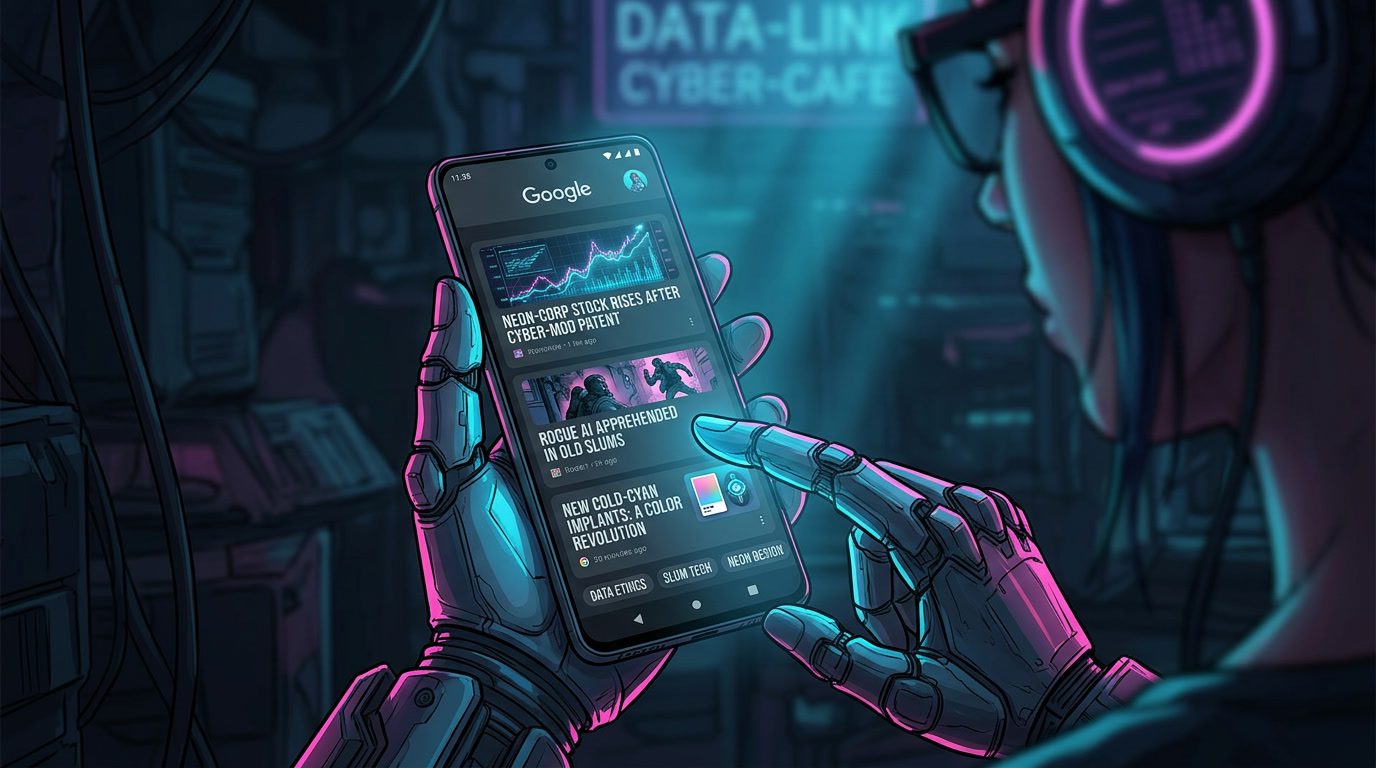

Google Discover is a personalized content feed inside the Google app. It shows you articles, videos, and news based on your interests, search history, and location — no search query needed. You open the app, scroll down, and it’s already there waiting for you.
TL;DR:
Google Discover is Google’s proactive recommendation engine. It learns from your search history, YouTube activity, location, and account behavior to serve relevant content before you even ask for it. On Android, swipe right on the home screen or scroll down in the Google app. On iPhone, open the Google app. On desktop, go directly to https://news.google.com/foryou. No subscription required — just a Google account with web activity enabled.
Discover is not a news aggregator in the traditional sense. It does not just pull today’s headlines. It curates a personal mix of evergreen articles, breaking news, how-to guides, and trending topics — all filtered through what it knows about you.
Want to get your content featured in Google Discover? Check out our guide: How to Appear in Google Discover.
Your feed is never the same as someone else’s. Two people sitting in the same room with the same phone model will see completely different Discover feeds. That is the whole point.
Most users already have Discover and just do not know it. It has been part of the Google app since 2018, quietly running in the background, building a picture of what you actually care about.
What Is Google Discover?
Google Discover is a content recommendation system that replaced Google Feed in 2018. Rather than waiting for a user to search, it proactively surfaces content it predicts the user will find valuable.
Think of it like this: traditional Google Search is a library where you ask for a specific book. Discover is a librarian who has been watching what you read for months and quietly leaves relevant books on your desk before you ask.
The feed appears as a vertical stream of cards — each card showing a headline, image, source name, and estimated reading time. Cards can represent blog posts, news articles, YouTube videos, Reddit threads, or product pages. Tapping a card opens the content in your browser or app.
Discover is available in over 40 languages and shown to users across Android, iOS, and desktop browsers — though the experience differs slightly per platform.
FYI: Google Discover and Google News are related but not identical. Google News (news.google.com) is an editorially structured news service. Discover is a behavioral recommendation engine that may include news alongside non-news content. The page https://news.google.com/foryou blends both into a single “For You” view.
How Google Discover Works
How Google Discover works comes down to signals — dozens of them — that the system collects and weighs continuously to decide what belongs in your feed.
The core signals include:
- Web and app activity — every search you run on Google, every page you visit through Chrome while signed in
- YouTube watch history — what you watch, finish, skip, or subscribe to
- Location history — where you go, what local businesses you visit or search near
- Explicit feedback — when you tap “More like this” or “Fewer like this” on a card
- Followed topics and sources — interests you have marked directly in Discover settings
- Current trends — topics spiking globally or locally that Google predicts may interest you
Underneath those signals, Google’s systems use machine learning to match content quality with user intent. Articles that appear in Discover need to meet certain technical requirements on the publisher side — specifically, a featured image at least 1200 pixels wide, a functional RSS feed, and content that follows Google’s quality guidelines.
That last part matters for how content gets into the pool. But what you personally see from that pool depends entirely on your behavioral profile.
Pro tip: Discover does not need you to be actively using your phone to update. It refreshes in the background. Open the Google app after a few hours away and you will typically see new cards that reflect both your past interests and whatever is trending right now.
How to Open Google Discover on Android
On Android, Google Discover is accessible in three distinct ways — and at least one of them is probably already sitting on your device right now.
Method 1 — Swipe right on the home screen
On stock Android and Google Pixel devices, swiping right from the main home screen opens the Discover feed directly. No extra steps. This works out of the box on devices running a standard Google launcher.
On Samsung, Xiaomi, or other manufacturer-customized launchers, this swipe may open a different panel — like Samsung Free or Xiaomi’s news widget — instead of Google Discover. In that case, use Method 2.
Method 2 — Google app scroll
- Open the Google app (the white icon with the colorful G)
- Scroll down past the search bar
- The Discover feed appears immediately below
This works on any Android device regardless of launcher, and it is the most reliable method across different phone brands.
Method 3 — Chrome new tab
- Open Chrome on Android
- Tap the plus icon to open a new tab
- Scroll down beneath the shortcut icons
- A “For You” section appears — this is Discover content
Method 4 — Add as a home screen widget
Long-press an empty area of your home screen, select Widgets, find the Google widget, and drag it to your screen. This gives you a persistent Discover card without opening any app.
How to Open Google Discover on iPhone
Apple does not allow third-party apps to control the native left-swipe screen panel, so Discover on iPhone works differently — but it is still fully functional.
Method 1 — Google app
Download or open the Google app from the App Store. Sign into your Google account. Scroll down below the search bar. The Discover feed loads automatically.
The iPhone Discover experience is nearly identical to Android in terms of content — same algorithm, same card format, same controls. The only difference is where it lives on the device.
Method 2 — Chrome on iOS
Open Chrome, tap the plus icon for a new tab, then scroll down. Articles will appear below the shortcut tiles. This is not technically labeled “Discover” in Chrome on iOS, but it draws from the same content system when you are signed into your Google account.
Method 3 — Add a Google widget to the iOS home screen
iOS 14 and later supports widgets from third-party apps. Long-press your home screen, tap the plus icon in the top-left corner, find the Google app widget, and place it. This gives you Discover cards directly on your iPhone home screen — one of the closer experiences to Android’s native integration.
FYI: On iPhone, the Google app must have access to your Google account with web and activity history enabled. Without that, the feed will show generic trending content rather than personalized recommendations.
How to Access Google Discover on Desktop
Most users assume Discover is mobile-only. It is not, and the desktop version is genuinely useful — especially if you spend most of your day in a browser.
Direct link — the most reliable method for any browser:
Go to: https://news.google.com/foryou
This is the official “For You” page of Google News, which pulls your personalized Discover content and presents it in a desktop-friendly layout. Sign into your Google account first. The feed will reflect your interests, search history, and followed topics — same as on mobile.
This link works in Chrome, Firefox, Safari, Edge, and most other browsers. Bookmarking it takes two seconds and gives you a dedicated Discover entry point on any computer.
Chrome new tab — for Chrome users specifically:
- Open a new tab in Chrome (Ctrl+T on Windows, Cmd+T on Mac)
- Scroll down below the Most Visited shortcuts
- A “For You” section appears with article cards
This only works in Chrome. Other browsers show their own new tab content.
Google.com home page — inconsistent but sometimes available:
Depending on your region, account settings, and browser, scrolling down on google.com may show a Discover-style feed below the search bar. This behavior is not consistent across all accounts and regions — the direct link above is far more reliable.
| Method | Platform | Where to go |
|---|---|---|
| Direct link | Any browser, any device | https://news.google.com/foryou |
| Chrome new tab | Chrome on desktop | Ctrl+T / Cmd+T, scroll down |
| Google app | Android, iOS | Open app, scroll down |
| Home screen swipe | Android (stock launcher) | Swipe right from home screen |
| iOS widget | iPhone (iOS 14+) | Add Google widget to home screen |
| Chrome new tab | Chrome on Android | New tab, scroll down |
Pro tip: If you use Google Chrome as your main browser, setting the new tab page to show Discover by default costs you nothing. Just open a new tab, scroll down once, and your personalized feed is right there — no extra apps, no bookmarks needed.
Why Google Discover Disappeared or Stopped Working
Discover going missing is one of the most common questions users search for — and usually the fix is straightforward.
The most frequent reasons Discover stops appearing:
Web activity is turned off. This is the single most common cause. Discover cannot personalize without your history. Go to myactivity.google.com, check that “Web & App Activity” is enabled, and make sure “Include Chrome history and activity from sites, apps, and devices” is checked.
You are signed out of your Google account. Discover requires an active Google session. Open the Google app and confirm you are logged in.
Your launcher does not support Discover. On Samsung, Xiaomi, Oppo, and other custom Android skins, the left-swipe panel is controlled by the manufacturer — not Google. The Google app method will still work.
The app needs updating. An outdated Google app sometimes loses the Discover feed. Check the Play Store or App Store for updates.
Discover is manually disabled. Someone — possibly you — may have turned it off in settings. The next section covers how to turn it back on.
Regional or language mismatch. If your device language does not match a language Discover supports, the feed may not appear. Discover works best when your device language, Google account language, and location all align.
How to Turn Google Discover On or Off
Controlling Discover is straightforward once you know where the setting lives.
To enable or disable Discover on Android:
- Open the Google app
- Tap your profile picture (top-right corner)
- Go to Settings
- Tap General
- Find Discover and toggle it on or off
To manage what Discover shows you:
Tap the three dots on any card to see options: “More like this,” “Fewer like this,” or “Hide all stories from [source link].” These signals train the algorithm immediately — results typically shift within a few hours.
To reset your feed almost entirely:
Go to myactivity.google.com and delete your web and app activity for the past 30 to 90 days. Discover will temporarily show generic trending content, then slowly rebuild around whatever you search for next. It is not a clean slate — but it is the closest thing available.
Turning off Discover does not delete your activity history. If you want to stop Google from collecting activity altogether, that is a separate setting under your Google account’s “Data & Privacy” section.
FYI: Hiding a source from Discover is not permanent. If that source covers a topic you later search repeatedly, it may reappear. The feed responds to behavior, not just one-time preferences.
Google Discover and Your Privacy
Worth saying plainly: Discover is powered by data. A lot of it.
Every search, every YouTube video, every location ping that feeds into your Google account is fair game for the algorithm. For most users, the trade-off feels reasonable — a useful, personalized feed in exchange for behavioral data. But it is worth understanding what you are giving up.
Your Discover feed is, in a sense, a mirror of your digital habits. Someone who can see your feed could make accurate guesses about your health concerns, political leanings, shopping intentions, and hobbies. That data lives in your Google account and influences far more than just Discover.
If you care about this, there are practical steps you can take. Reviewing your browser fingerprinting situation is a good start — Discover is one layer of data collection, but far from the only one. Understanding what your IP address reveals about you adds more context. And if you use Chrome while signed into Google, incognito mode will not protect you from Discover’s data collection — it only hides activity from your local device history. Your social media activity connects to this picture too, especially given that Google now pulls signals from YouTube — which is, technically, a social platform.
None of this makes Discover a threat. It makes it a service you should understand before using.
Conclusions
Google Discover is one of those features hiding in plain sight — built into billions of devices, yet misunderstood by most people who use it daily. Knowing what is Google Discover gives you control: over what you see, how often you see it, and how the algorithm learns your preferences.
On Android, it lives behind a swipe or inside the Google app. On iPhone, the Google app is your entry point.
On desktop, the fastest path is a direct bookmark to https://news.google.com/foryou. If it disappeared, the history settings in your Google account are almost certainly the culprit.
Use it actively — tell it what you like and what you do not — and it gets noticeably better within days.
Frequently Asked Questions
What is Google Discover?
Google Discover is a personalized content feed built into the Google app and mobile browsers. It shows articles, videos, and web pages based on your interests, search history, and location without you needing to type a query.
What is the difference between Google Search and Google Discover?
Google Search shows results in response to a query you type. Google Discover shows content proactively, before you search based on what Google thinks you're interested in.
Is Google Discover the same as Google News?
No. Google Discover is a broader interest-based feed built into the Google app. Google News is a separate app focused specifically on news articles from publishers.
Is Google Discover free?
Yes, completely free. No subscription or account payment required, though you need a Google account to personalize the feed.
Where is Discover in Settings?
Open the Google app, tap your profile picture in the top right, go to Settings, then tap "General." There you'll find the Discover toggle to turn it on or off.