
If you want to change Facebook Marketplace location, most guides give you the same lazy answer: open Marketplace, change the location, pick a new city, done.
That is enough for casual browsing.
It is not enough if you manage multiple accounts, run automation, work from mobile setups, or care about privacy. A location field is just one visible setting. Your IP, DNS, WebRTC behavior, and browser fingerprint can still tell a different story. Websites can still see signals like timezone, language, screen size, fonts, device settings, and network behavior.
That is where people get false confidence.
They think they changed the location. In reality, they only changed the label.
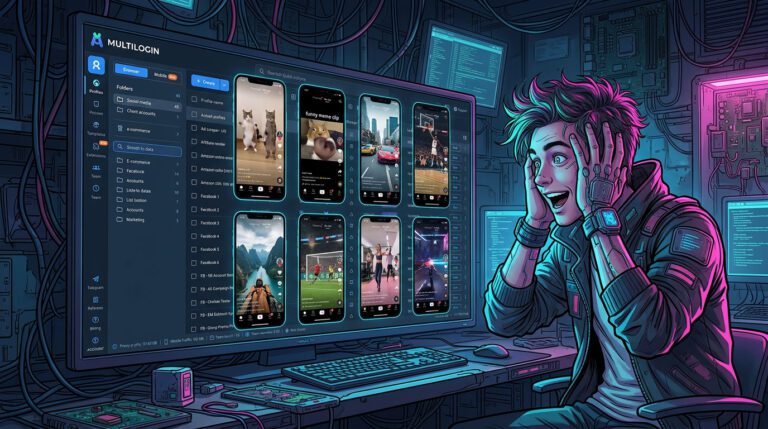
If your Marketplace location says one city, but your IP points somewhere else and your browser or device fingerprint tells another story, the setup still looks inconsistent. That is why serious users often go beyond a basic VPN and look at tools like Multilogin, cloud phone setups, or other controlled environments when they need better session separation.
Before doing any of that, the smart move is simpler: verify what your connection is actually exposing. With WhoerIP, you can check your current IP, test for DNS leak and WebRTC leak, and see whether your setup still reveals more than you expect.
Test yourself before you change Facebook Marketplace location
Before you touch Marketplace, ask yourself:
- Does my current IP match the region I want to appear from?
- Does my DNS leak show the same country as my IP?
- Can WebRTC still expose another IP or local network detail?
- Does my browser fingerprint still look inconsistent for that region or device type?
If you cannot answer those four questions, your setup is not really under control yet. MDN notes that WebRTC candidate data can expose IP-related information that can be used to derive location or for fingerprinting, and EFF explains that trackers can still see a lot about how your browser is configured.
A simple move here is to check your current IP on WhoerIP before changing anything else. That gives you a baseline instead of a guess.
How to change Facebook Marketplace location
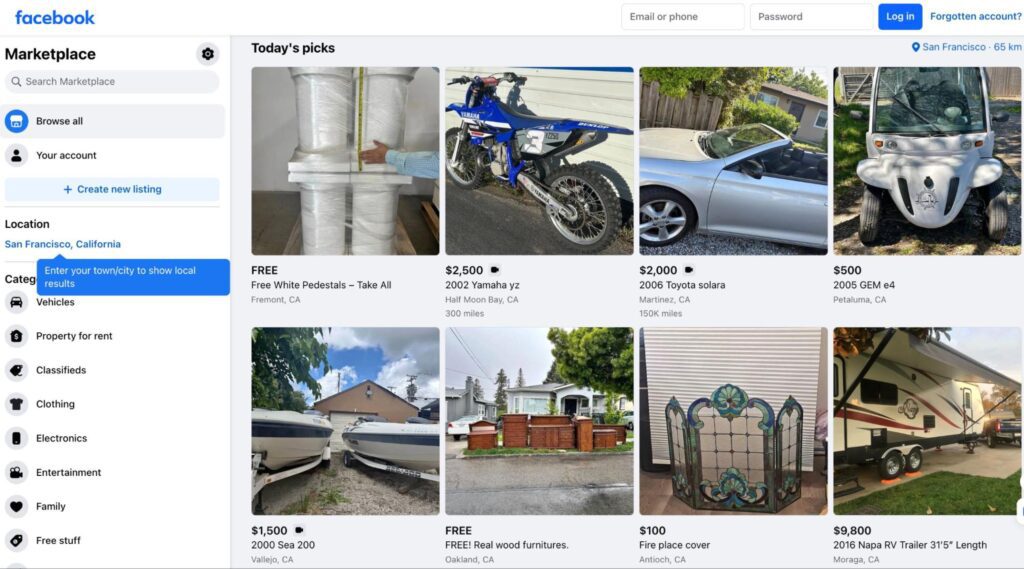
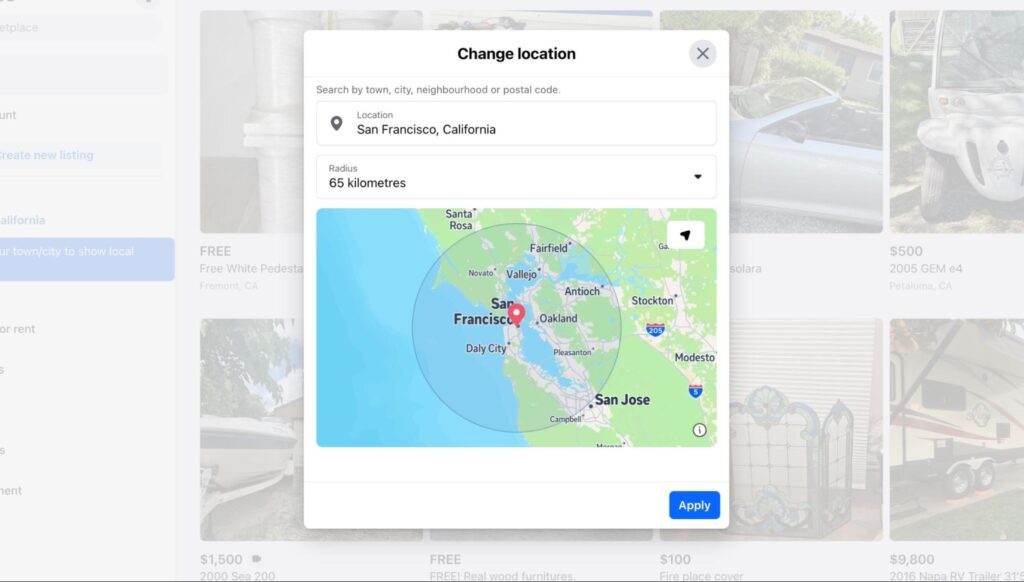
Facebook’s Help guidance shows that you can change your Marketplace listing location from Marketplace by selecting your location, then entering a town, city, neighborhood, or postcode, or choosing a place on the map. The mobile help version also points users to the location control inside the Facebook app.
A simple process looks like this:
- Open Facebook Marketplace.
- Find the location field.
- Enter the new city, area, or postcode.
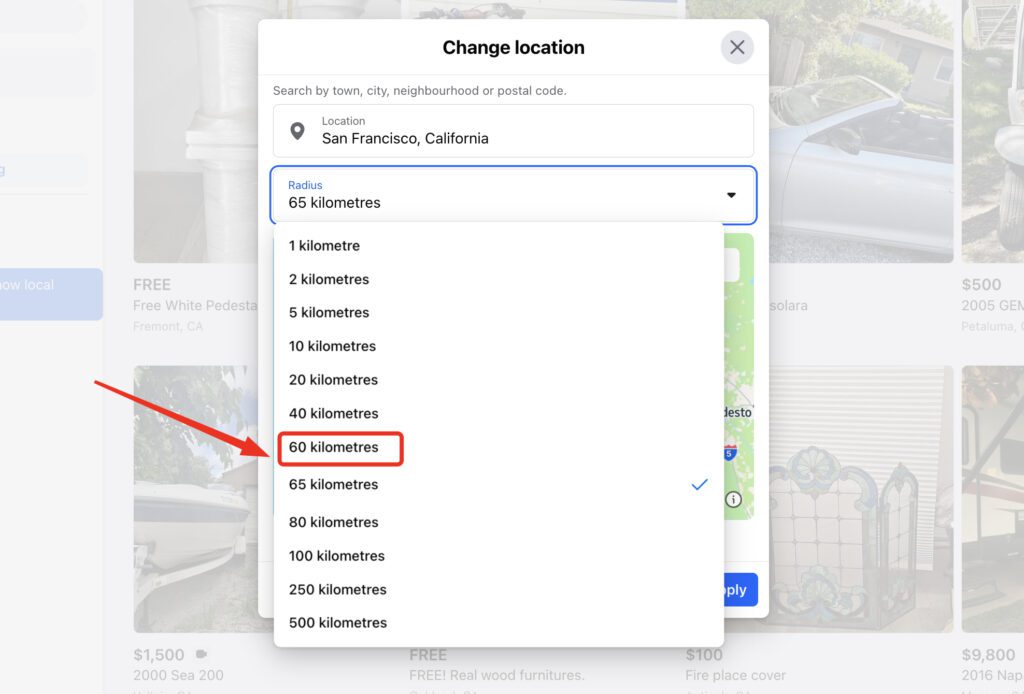
- Adjust the search radius if needed.
- Refresh results and confirm the feed changed.
That changes what Marketplace is told to show you.
It does not automatically make your session anonymous. That part is where most “how to change Facebook Marketplace location” articles stop too early.
=> Searching for a reliable TikTok downloader in 2026? Don’t miss Best TikTok Downloaders in 2026: The Ultimate Guide.
Why changing Marketplace location is not the same as changing your real setup
Think of Marketplace location as a request, not proof.
You are telling Facebook what area you want to browse. But your browser and network may still expose signals that do not match that request. Fingerprinting works by combining many traits of the browser and device, such as version, timezone, preferred language, available codecs, fonts, screen size, and settings, to distinguish one setup from another.
That means this can happen:
- You set Marketplace to Chicago.
- Your IP says Vietnam.
- Your timezone says Asia/Ho_Chi_Minh.
- Your WebRTC data exposes another network path.
- Your DNS requests go through your ISP.
- Your browser fingerprint still looks like the same old machine.
Now the location selector says one thing, while the rest of the session says something else. That mismatch is the real problem!
What can still leak after you change location?
Here is the short version:
- IP leak: your visible IP still points to the wrong region.
- DNS leak: your DNS requests still go through your ISP or another unintended resolver.
- WebRTC leak: browser communication features can expose IP-related details you did not expect.
- Proxy detection: your proxy or VPN may be obvious, flagged, or low quality.
- Browser fingerprinting: your browser can still look uniquely identifiable from its settings and device traits.
This is why “VPN on” is not the same as “safe to use.”
Before using multiple accounts, it is smarter to test DNS leak and WebRTC leak on WhoerIP than to assume the tunnel is clean.
=> If you care about rotating proxies in 2026, this is worth reading: Best Rotating Proxies in 2026: Top 10 Providers Compared.
A simple 3-minute check before using Facebook Marketplace
Here is a practical self-check that catches most obvious mistakes:
- Check your current IP and country.
- Run a DNS leak test.
- Run a WebRTC leak test.
- Look for proxy/VPN/TOR detection.
- Compare timezone, language, browser, and device consistency.
- Do an IP lookup to see whether the IP looks residential, mobile, or suspicious.
This is the point where WhoerIP fits naturally. Not as a magic fix. As a fast reality check!
Use it to see what your connection is actually exposing before you log into Marketplace, warm an account, or run automation on top of a bad setup.
When a basic VPN is not enough
For a casual buyer, changing the Marketplace location may be enough.
For a multi-account manager, mobile operator, or automation workflow, it often is not.
If you are dealing with repeated logins, account clusters, mobile environments, or location-sensitive actions, you may need extra layers such as:
- a clean proxy
- a cloud phone
- a virtual phone
- a more consistent antidetect setup
Not every user needs a complex setup. The right approach depends on the level of risk involved. For basic browsing, a simple setup may be enough. But if you manage multiple identities or operational workflows, relying on an IP change alone is rarely sufficient.
Common mistakes when changing Facebook Marketplace location
One of the biggest mistakes people make when trying to change Facebook Marketplace location is assuming that the location selector alone controls how their session appears. In reality, that setting mostly changes what Marketplace is asked to show, not how the full browsing environment looks from the outside. That is why many users end up with a setup that appears inconsistent even though they think the location has already been changed properly.
Common mistakes usually include:
- setting Marketplace to a new city while the IP still points to another country
- keeping the original browser timezone, language, or device setup unchanged
- letting DNS requests continue through the local ISP
- assuming a VPN alone is enough to make the whole session consistent
- logging in immediately without testing for DNS leak or WebRTC leak first
Another issue is that users often focus on one visible setting and ignore the rest of the signals their browser and network still expose. When the location says one thing but the broader environment says something else, the setup can look weak or poorly aligned. A smarter approach is to treat location change as just one part of a larger consistency check, not the complete fix by itself.
A practical checklist before using Facebook Marketplace with a new location
Before using Facebook Marketplace with a new location, it helps to do a quick pre-check so the visible setting matches the rest of the setup. This does not need to be complicated. A short review of your network and browser signals can catch the most obvious mistakes before login and reduce the chance of working with a mismatched session.
A practical checklist looks like this:
- confirm that your public IP matches the region you want to appear from
- run a DNS leak test to see whether another location is still exposed
- run a WebRTC leak test to check for hidden IP-related details
- compare timezone, browser language, and device type for consistency
- check whether the connection appears clean rather than obviously flagged as proxy or VPN
- review whether the overall browser fingerprint still matches the region and device profile you want to present
Once these basics are checked, the setup becomes much more reliable for actual Marketplace use. This matters even more for users handling multiple accounts or location-sensitive activity, because repeated inconsistencies become easier to notice over time. Spending a few minutes on this checklist is often better than assuming everything is fine based only on the location field.
Final Conclusions
Changing Marketplace locations is easy. Here is the clean takeaway:
- Change Facebook Marketplace location if you want different local results.
- Do not assume that changing location or IP makes you anonymous.
- Check for IP leak, DNS leak, WebRTC leak, proxy detection, and browser fingerprinting before using sensitive setups.
- Use stronger tools like clean proxies, cloud phones, virtual phones, or antidetect environments only when your use case actually needs them.
The smartest first step is boring, but effective: check your IP and leak profile on WhoerIP before you trust the session.
Frequently Asked Questions
How do I change Facebook Marketplace location?
To change Facebook Marketplace location, open Marketplace and find the location setting. Enter a new city, town, neighborhood, or postcode, then adjust the radius if needed. However, this only changes the visible location inside Marketplace. It does not automatically change your IP address, browser setup, or network signals, which may still reveal a different region or create mismatched location data.
Does changing Facebook Marketplace location change my real IP?
No. Changing Facebook Marketplace location does not change your real IP address. It only changes the area you choose to browse or list in within the platform. Your actual network identity is still based on your internet connection, which includes your IP, DNS routing, and other technical signals. That means Facebook Marketplace location and your real connection data are separate. If they do not match, your setup may still appear inconsistent from a network or browser perspective.
Can a VPN be enough to look local on Marketplace?
A VPN may be enough for light, casual browsing, especially if you only want to view listings in another area. But for anything more sensitive, a VPN alone may not be enough. Your setup can still expose DNS leak, WebRTC leak, proxy detection signals, or browser fingerprint inconsistencies. In other words, the IP may look local while the rest of the session does not. That is why a VPN should be treated as one layer, not a complete anonymity solution.
Is incognito mode enough for privacy?
No. Incognito mode mainly prevents browsing history, cookies, and local session data from being stored on your own device after the session ends. It does not make you anonymous to websites, platforms, or trackers. Your IP address, DNS behavior, WebRTC data, and browser fingerprint can still be visible. That means incognito mode is useful for local privacy on your own device, but it is not a reliable solution if you are trying to reduce exposure or look consistent online.
What should I test before using multiple Marketplace accounts?
Before using multiple Marketplace accounts, you should test the parts of your setup that can create obvious mismatches. At minimum, check your current IP, DNS leak status, WebRTC leak status, proxy or VPN detection result, and your browser or device consistency. These tests help you see whether your setup looks clean and aligned before logging in or running activity. It is a simple step, but it can reveal issues that changing Marketplace location alone will never fix.