

What Does “IP Block” Mean?
Imagine that the Internet is a huge city, and each IP address is like a house number. When you “block the IP,” you are essentially saying, “This house is not allowed to enter our yard,” or vice versa, “We will not knock on the door for the residents of this house.” Let’s find out together what it is and how to block IP address.
From a technical point of view, IP blocking is a setting in which everything that comes from or is sent to a specific IP address simply does not go through. It was as if the door had been boarded up: there was an attempt to get through, but there was silence inside.
- Blocking incoming traffic — you do not accept data from this address (for example, so that the spam bot does not bombard the site with garbage).
- Blocking outgoing traffic — you prohibit your devices from accessing a specific address (for example, to prevent employees from accessing social networks or malicious sites).
Sometimes it’s about prohibition (“you’re not coming in here”), and sometimes it’s about protection (“I’m not going in there”). And it is important to understand the difference: in the first case, you cut off other people’s attempts, in the second, you cut off your own.
Why Do They Block IP Addresses At All
There are a lot of reasons, and they depend on the situation.
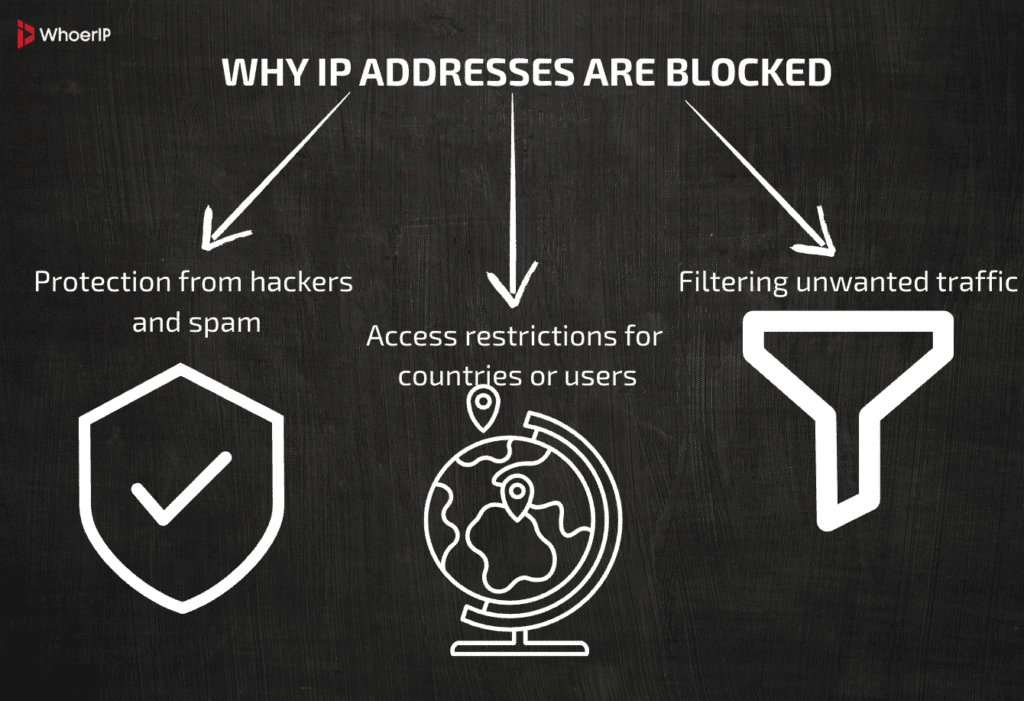
- Protection from hackers and spam, if a site sees that there are constant hacking attempts coming from a certain IP address, password selection, or bombarding forms with ads, it is logical to simply “cut off” this source. It’s like putting a barrier on a road where a truck with garbage is rushing over and over again.
- Access restrictions for countries or users, some companies block traffic from entire regions. The reasons are different: laws, licenses, content protection, or banal resource savings. For example, a streaming service may prohibit watching movies from a country where there are no screening rights.
- Filtering unwanted traffic, these are not always intruders — sometimes they block bots, automated parsers, or even overly active “scanners” that load the server. It’s like filtering out the noise in your phone: you can hear useful voices, and remove unnecessary background.
In fact, IP blocking is a way to leave only the traffic that you need and clean out the rest of the “garbage stream”.
How IP Blocking Works — On Your Fingers
It’s not that complicated, although it sounds like it’s from the hacker world.
Every Internet connection — whether it’s opening a page, sending an email, or watching a video—is accompanied by the IP address of the sender and recipient. It’s like a postal envelope: it says on the outside who sent it and to whom.
How the lock works:
- The system (router, server, or application) checks this address.
- If he is on the “blacklist”, the request is not allowed further.
- If the address is “clean”, the traffic passes.
How devices “recognize” unwanted IP addresses:
- The administrator adds the addresses to the block list himself.
- Ready-made databases of “bad” IP addresses are used (for example, known addresses of bots or hackers).
- Automatic rules apply: if too many requests arrive in a minute, the address is temporarily or permanently blocked.
The analogy: it’s like a security guard at the entrance to a club with a “do not let in” printout — he checks his face against the photo on the list. If it matches, the entrance is closed.
Different Types Of Locks
An IP address is, in fact, a passport for each participant on the Internet. And, like any passport, it can be “not allowed” into the building — the only question is where to put a guard. You can put a watchman right at the door of your apartment, you can at the entrance to the entrance, you can barricade the entire area, or you can block the border of the state. The difference is in the scale and consequences.
Let’s look at four key levels of IP blocking: from local to global, with examples, nuances and pitfalls.
1. How to Block IP Address At the Device Level (Locally)
This is the closest option to you — the “security guard” is sitting right on your computer, laptop or smartphone. It prevents individual IP addresses from even knocking on your door.
How is this done?
- Windows — Built-in firewall (Windows Firewall) allows you to create rules that prohibit incoming or outgoing traffic for specific IP addresses. There is also a hosts file where you can enter the site address and redirect it, for example, to 127.0.0.1 (your computer), effectively “zeroing out” access.
- MacOS and Linux — commands like pfctl, iptables, ufw are used here. They are more flexible, but they also require care: if you make the wrong rule, you will block half of the Internet.
- Smartphones — built-in settings usually do not allow you to block IP directly, but this can be done through filter applications (antiviruses, VPN with blocking function, root/jailbreak utilities).
Positive:
- Fast, simple and without provider involvement.
- Suitable if you want to block the site only for yourself (or vice versa — only for one child on a tablet).
Minuses:
- Works only on one device.
- You can bypass it by simply changing your device or network.
- If you forget about the rule, then you can puzzle for a long time why “the Internet is not working.”
The analogy: It’s like putting a lock on your room — your roommates can go wherever they want, but not to your room.
2. How to Block IP Address At the Network/Router Level
Here, the “watchman” appears already at the entrance to your home or office — on the router. He checks all incoming and outgoing traffic and decides who to let in and who not.
How is this done?
- The router’s admin panel (usually something like 192.168.0.1) has sections like Firewall, Access Control, and IP Filtering.
- You can specify one or more IP addresses that will be blocked for all devices on the network.
- Some models allow you to block not only IP, but also entire subnets, countries, or domains (with automatic IP substitution).
Device examples:
- TP-Link — in the “Access Control” section, you can add a “Deny” rule for IP.
- ASUS — there is a separate tab “URL Filter” and “Network Services Filter” in the “Firewall”.
- MikroTik — there’s actually a whole “tool shop” for filtering, from simple deny to complex scripts.
Positive:
- The lock is valid for everyone on the network at once.
- Suitable for family control or office security.
- It is possible to block harmful traffic even before it gets to the device (there is less chance of infecting the PC with a virus).
Minuses:
- If the guest connects via the mobile Internet, the router will no longer restrict it.
- For some cheap routers, IP filtering is crooked and slows down the network.
The analogy: how to put a guard at the door to the entrance — outsiders simply will not get into your apartment, but if someone climbed through the window, the control will not work.
3. How to Block IP Address At the Server or Hosting Level
Now we are transferred to the side of the resource owner. If you have a website, an online store, or an API, you can keep unwanted guests out even before they start loading pages.
How it’s done:
- Apache — via a file.htaccess and the Deny from IP_ADDRESS command.
- NGINX — in the config, you can specify deny IP_ADDRESS; or even a whole range.
- cPanel / Plesk — the control panels have simple interfaces for blocking IP without messing with the code.
Why you need it:
- Protection from brute force (numerous attempts to find a password in the admin area).
- Cutting off parser bots that pull content.
- API access restrictions for certain countries or providers.
Positive:
- Flexibility: you can block IP addresses, ranges, and countries.
- It works before the load falls on the application — saving resources.
- You can create whitelists (access only from certain IP addresses).
Minuses:
- It will not help if the attack is carried out through a proxy or a distributed network (DDoS).
- You need to update the rules regularly, otherwise you can ban innocent people.
The analogy: It’s like putting a guard at the door of your store and saying, “Let these customers in, don’t let these customers in.” Even if the store is located in a large shopping mall.
4. How to Block IP Address At the Provider or Country Level
This is already heavy artillery. Here, filtering does not take place at your home or even on the server, but in the very center of the Internet distribution.
How it works:
- An Internet service Provider (ISP) blocks certain IP addresses or ranges by order of the regulator or according to internal rules.
- In some countries, national filters are in place — everything that goes across the network borders is checked. If the address is on the blacklist, the connection is terminated or redirected.
Examples:
- In Russia, there are blockages by the decision of Roskomnadzor (the register of prohibited resources).
- In China, there is the “Great Chinese Firewall” (GFW), which filters not only IP, but also the contents of packets.
- In corporate and university networks, administrators can also implement similar rules through internal gateways.
Positive:
- Scale: you can immediately cut off millions of users from a resource.
- Effective for restricting access within a jurisdiction.
Minuses:
- Easily bypassed via VPN, proxy, Tor.
- It can accidentally hook “innocent” sites if they share an IP address with blocked ones.
- Sometimes critical services suffer due to too wide filters.
The analogy: It’s like closing the state border for certain passports. No personality, just “are you from this country? So there is no passage.”
Little Conclusion
The four levels of IP blocking are four different scales of control. The closer the blocking point is to you, the easier it is to manage it personally, but the smaller the coverage. The higher the level (provider, country), the greater the effect, but the greater the risk of collateral damage and the easier it is to bypass the block.
- Local — personal protection or content filter.
- On the router, the entire network is protected.
- On the server, the security of the resource.
- Massive access regulation at the provider/country level.
The ideal approach is to combine levels. For example, an admin can block brute force on the server, and at home, he can cut off spam sites through a router. And let the provider filter the known botnets.
How To Block IP Address On Your Computer
Sometimes you need to close access only for yourself — without interfering with the network or server. It all depends on the system.
In Windows:
- The most obvious way is through the built—in firewall. Open the Control Panel → Windows Defender Firewall → Advanced Settings, create a new rule for incoming/outgoing connections and specify the IP. That’s it, traffic won’t get in or out.
- A more “hard” way is through the hosts file (C:\Windows\System32\drivers\etc\hosts ). You can specify there: 127.0.0.1 example.com
But this only works on domains, not pure IP.
In macOS and Linux:
- At the terminal level: iptables -A INPUT -s 192.168.1.100 -j DROP (Linux) or via pfctl (macOS).
- Simplified version — UFW (Linux): sudo ufw deny from 192.168.1.100.
- Plus, in macOS you can block IP through a Little Snitch — user-friendly GUI-the tool.
The pitfalls:
- Local lock only works on this device.
- If the site changes its IP address or works via CDN, you will have to update the list.
How To Block IP Address On The Router
Do you want to cut off access to all devices in your home or office at once? Go to the router’s admin panel.
The general procedure is:
- Open the router’s address in the browser (192.168.0.1 or 192.168.1.1).
- Log in (login / password on the sticker below).
- Find the Access Control, Firewall, or IP Filtering section.
- Add the IP address to the block list.
Examples for popular models:
- TP-Link: Security → Access Control → Rule List. Adding a rule with the “Deny” type for the IP.
- ASUS: Firewall → Network Services Filter. You can block by a range of addresses.
- MikroTik: via WinBox or WebFig, in the IP → Firewall → Address List section.
Plus:
- One setting — and all the devices behind the router are deprived of access to the IP.
- Works for both Wi-Fi and cable.
Minus:
- If the provider has a dynamic IP, it is useless to block it — tomorrow it will be different.
Server Blocking: Apache, NGINX, cPanel
If you have a website or server, you can block IP addresses directly at the web server level.
Apache (.htaccess):
We put it in the root of the site .htaccess with rules:
Order Deny,Allow
Deny from 192.168.1.100
It works instantly, but it only affects HTTP traffic.
deny 192.168.1.100;
allow all;
NGINX (in the config):
In nginx.conf or in the site config:
After that, nginx -s reload.
Through the control panels:
- cPanel: IP Blocker — enter the IP or range, the lock is applied immediately.
- Plesk: Tools & Settings → IP Address Banning (Fail2Ban).
It’s convenient when you want to block bots, spammers or specific intruders right at the entrance to the site.
Using Firewalls And WAFs
If you want something smarter than a “ban on the address”, heavy protection is activated.
Firewall (firewall):
- On the server: iptables, firewalld (Linux) or built-in Windows Firewall.
- Flexible rules can be set: block ranges, countries, or specific ports.
WAF (Web Application Firewall):
- Examples: Cloudflare, AWS WAF, Imperva.
- Cloudflare has “IP Access Rules” — you can ban by IP, ASN (provider) or country.
- WAF analyzes traffic more deeply than a regular firewall: it looks not only at IP, but also at behavior.
When is the best time to entrust blocking to the cloud?
- When you don’t have the resources for your own infrastructure.
- When you need to repel a massive attack, the cloud scales faster than your server.
How to Block IP Address Via CDN
The idea is simple: let it be not your server that is responsible for the “external fence”, but the hefty guard in front of it — the CDN. The Content Delivery Network stands between the Internet and your site and can filter traffic even before it touches your resources.
What it looks like in real life:
- Requests are sent not to your server, but to CDN nodes (local points of presence around the world).
- CDN checks the sender’s IP address, behavior, country, and frequency of requests.
- Anything that looks like noise, bots, parsers, or attacks is cut off at the perimeter.
- “Clean” requests are already reaching your backend.
An example from Cloudflare:
- The Cloudflare panel has IP Access Rules: you can ban by IP, by range, by ASN (provider/operator), and even by country.
- Modes of action: Block, captcha, JS Challenge, Bypass.
- Plus “Firewall Rules” and “Rate Limiting”: you can say “if 200 requests for /login arrived from this IP in a minute, enable challenge or ban for 10 minutes.”
The advantages of this approach:
- Load reduction: your server does not waste CPU/memory on garbage — it is “eaten up” by CDN.
- DDoS protection: large CDNs are able to bypass terabytes of traffic. Your server alone will not be able to do this.
- Flexibility: change the rules in a couple of clicks, apply globally.
The pitfall: proper setup. Filters that are too strict will cause real users to stumble over captchas. We need a balance.
Dynamic IP Addresses And The Problem Of Permanent Blocking
You have banned the IP, everything has gone quiet… until tomorrow. In the morning, an ordinary person comes from the same address and wonders why he is not allowed in. What happened? The magic of dynamic addressing has worked.
Why this happens:
- Providers often have dynamic IP output: today the bot has the address, tomorrow the student who just wants to place an order.
- Mobile networks and CGNAT: one external IP is shared by hundreds of users. Ban the IP address — you’ll hurt a bunch of innocent people.
Risks of excessive blocking:
- You drop the conversion: users cannot access the website or make a purchase.
- You receive complaints and “black marks” in reviews.
- Leak analytics: some of the “normal” traffic disappears, and the picture is distorted.
What to do about it:
- Block ranges only when certain (for example, known subnets of “dirty” data centers).
- Introduce automatic rules when the deadline expires (ban for 10-60 minutes with a surge — instead of permanent forever).
- Use a geo-block if the attack is from a specific region, but the audience is not there.
- Add CAPTCHA / Challenge as a soft check instead of a total ban: a real person will pass, a bot will not.
The idea is not to lock the door forever, but to set “self—healing” rules: if you break, rest, if you improve, come in. To find out more about dynamic and static IPs you can read our article.
How To Bypass Someone Else’s IP Lock (And Why It’s Important To Know)
It sounds provocative, but it is useful for an administrator to understand exactly how his barriers are bypassed: in order to test protection and see its boundaries.
Classic bypass tools:
- VPN: changes the external IP, allowing traffic through another server/country. From the site’s side, you are a “new” user.
- Proxy (HTTP/SOCKS, Residential/Mobile): route substitution via other addresses. Residential and mobile ones look “more plausible” than data centers.
- Tor: multi—layer routing, with a new IP address at the output, often from pools that sites don’t like by default.
Why do admins need to know this:
- To check their rules: whether what they need is really being blocked, whether ordinary users are suffering, how captchas and rate limits behave.
- To understand that IP blocking is not an absolute. Additional layers are needed: behavioral analysis, browser fingerprints, frequency restrictions.
Crawl Restrictions:
- VPNs/proxies often “glow” like data centers – they are being burned by WAF or anti—fraud.
- Tor may be subject to increased checks (challenge/captcha) or banned entirely.
- Resident proxies are expensive and do not solve everything: the pattern of behavior is still issued by the botnet.
The main idea is that knowing how to get around means defending yourself better.
How to Block IP Address Conclusion
IP blocking is a useful thing, but it’s not a silver bullet. She does an excellent job with obvious garbage: spammed subnets, brazen brute force, login flood, outright scan. It allows you to quickly extinguish a fire and unload the server. But then we need subtle tools.
When it really helps:
- With spikes in unwanted traffic, DDoS at the L7 level is paired with CDN and rate limit.
- With spot fraud from understandable subnets (data centers, “black” ASNs).
- As a “quick switch” in an incident.
When a set of measures is needed:
- Dynamic IP, CGNAT, mobile networks — here eternal bans are harmful. Temporary sanctions, captchas, and behavioral filters are better.
- Bots with “human” behavior — IP hardly helps here. We need WAF rules, fingerprinting, anomaly analysis.
Bottom line: IP blocking is part of the strategy, not the whole strategy. The layers of protection stack up like a sandwich: IP filters, CDN/WAF, frequency limits, form protection, good bots allowlist, log monitoring. Together they provide stability. Individually— it’s just an illusion of control.
Frequently Asked Questions
How to block IP?
Use firewall settings, router configurations, or security software to block specific IPs.
How to block my IP address?
You can't block your own IP completely, but you can hide it using a VPN or proxy.
How to block outside my country IP on Synology NAS?
Use Synology's Firewall (Control Panel > Security > Firewall) and create rules to allow only your country's IP ranges.
How to permanently block IP address on Discord?
Server admins can block IPs via IP bans (requires Discord's Trust & Safety team for severe cases). Normal bans are account-based.
Why is my IP address blocked?
Possible reasons: suspicious activity, violating terms of service, multiple failed login attempts, or being flagged by a firewall.
Does Instagram block by IP?
Yes, Instagram can block IPs for spam, abuse, or repeated violations.
How to block IP address on phone?
Use a firewall app (e.g., *NetGuard* for Android) or block via router settings. iOS requires VPN/firewall configurations.