
Most people think changing their IP address is as simple as turning on a VPN. Sometimes it is. But not always. You can change the IP address websites see, yet still leak your DNS requests. You can use a proxy, yet keep the same browser fingerprint. You can switch networks, yet keep getting CAPTCHA because the new IP has a bad reputation.
So if you are asking, “how to change my IP address on my computer?”, the better question is: what exactly are you trying to change – your public IP, local IP, DNS path, browser signals, or IP reputation?
This guide explains the practical ways to change your IP address on Windows, macOS, or any desktop browser setup. It also shows how to test whether the change actually worked.
Know which IP address you want to change
Your computer usually has more than one type of IP address. Your public IP address is the one websites, apps, and online services see. This is the IP that matters for privacy checks, location detection, VPN tests, proxy tests, account security reviews, and website access.
Your local IP address is used inside your home, office, or Wi-Fi network. It may look like 192.168.x.x, 10.x.x.x, or 172.16.x.x. Changing this can help with local network troubleshooting, but it usually does not change how websites see you.
For most users, changing IP address means changing the public IP address. That is what VPNs, proxies, mobile hotspots, router resets, and ISP changes can affect.
Check your setup before you change anything
Before changing your IP, run a quick baseline test. Open WhoerIP and check:
- Your current public IP address
- Country, city, ISP, and connection type
- VPN or proxy detection status
- DNS leak signals
- WebRTC leak status
- IP blacklist or reputation status
- Browser and device fingerprint signals
This gives you a “before” snapshot. Then change your IP using one of the methods below and test again. If the IP changes but DNS, timezone, WebRTC, or fingerprint signals still point to your real environment, your setup may still look inconsistent.
Run a quick IP, VPN/proxy, DNS, WebRTC, and blacklist check on WhoerIP before assuming your new IP is clean.
How to change my IP address on my computer: 6 practical methods you can use
Method 1: change your IP address with a VPN
The easiest route for most people is a VPN. Most of the time when you connect to a VPN server your real public IP address is hidden from web sites. They will see the IP of the VPN server. It can be useful to help hide your real network location, to expose yourself less on public WiFi, and to check how websites behave from different locations.
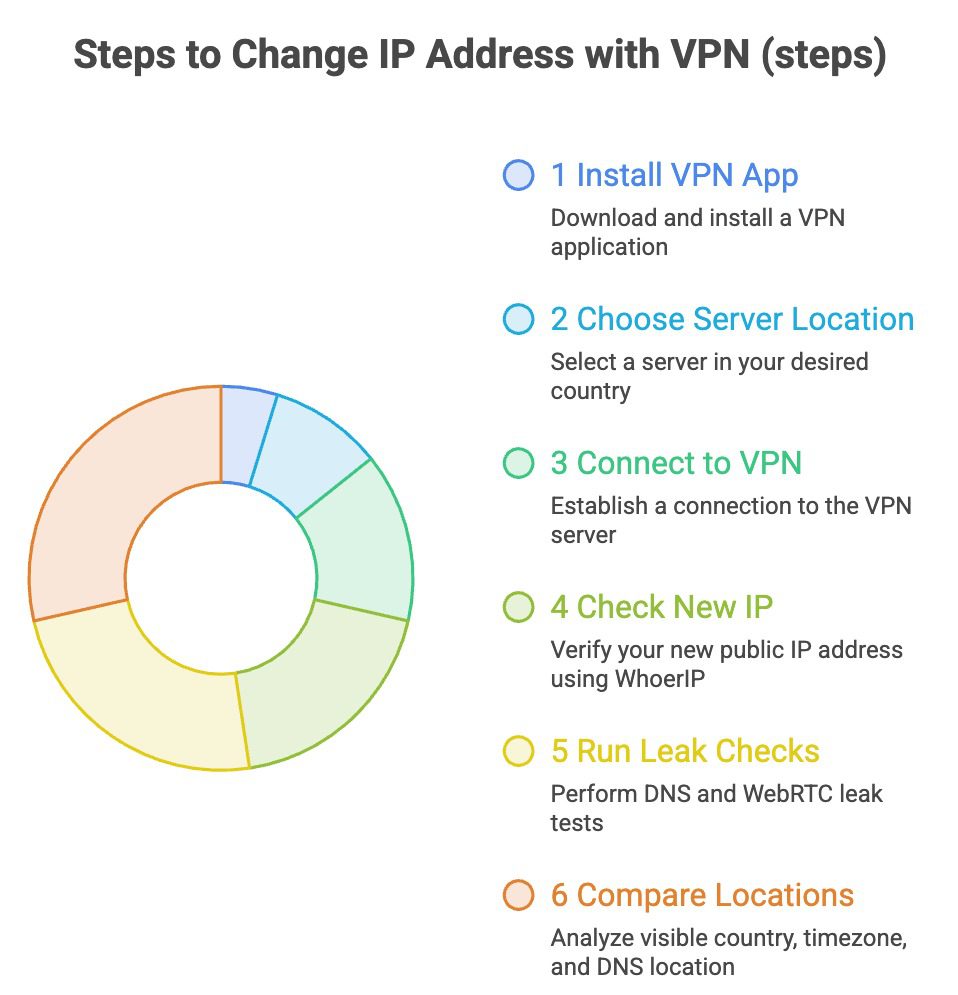
To change your IP address with a VPN:
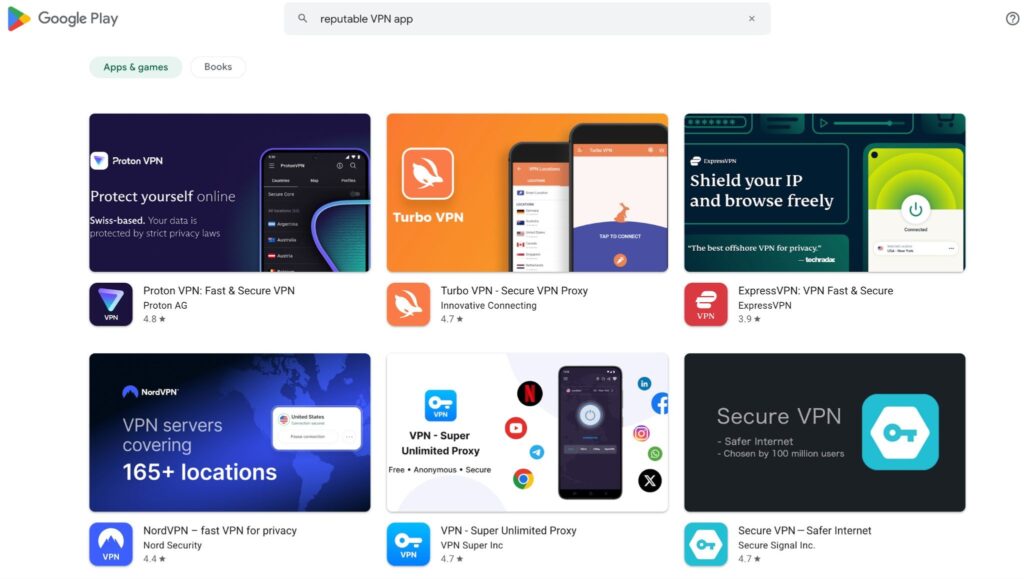
- Install a reputable VPN app.
- Open the app and choose a server location.
- Connect to the VPN.
- Open WhoerIP and check your new public IP.
- Run DNS and WebRTC leak checks.
- Compare the visible country, timezone, and DNS location.
A VPN is useful when you want a simple full-device IP change. Most VPN apps route traffic from your browser and many desktop apps through the VPN tunnel.
But a VPN does not make you fully anonymous. It changes who can see parts of your traffic. Instead of your ISP seeing everything, your VPN provider becomes a party you must trust.
A VPN also does not automatically fix browser fingerprint issues. If your browser timezone, language, WebRTC behavior, fonts, device data, or cookies still point to another region, websites may still see a mismatch.
Looking to expand your eBay business? Learn why managing multiple eBay accounts can help you reach more buyers and grow revenue here.
Method 2: change your IP address with a proxy
A proxy also changes the IP address that websites see, but it works differently than a VPN.
A proxy is an intermediary between your browser or app and the website you want to reach. Your request is sent through the proxy IP and the site sees that proxy not your original IP.
Proxies are often used to: QA testing, privacy testing, web scraping diagnostics where permitted, SEO checks, ad verification, localisation testing, and multi-account workflows.
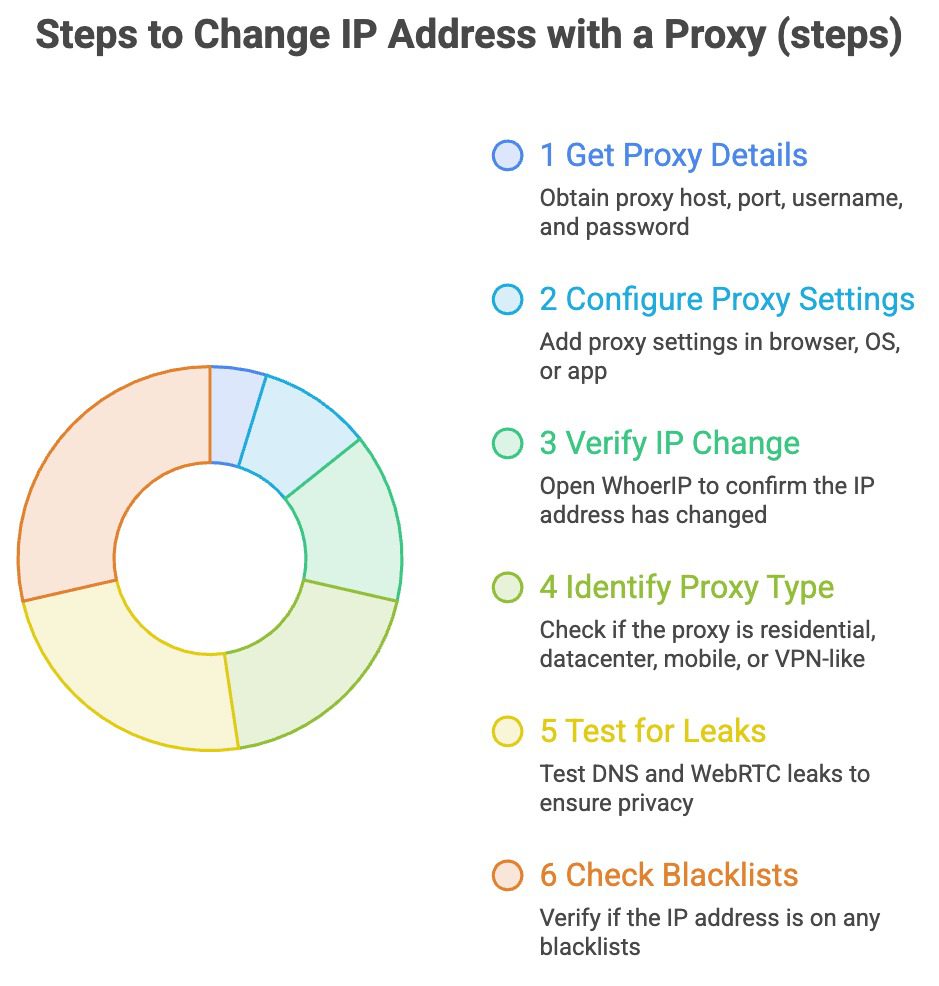
To change your IP address with a proxy:
- Get a proxy host, port, username, and password.
- Add proxy settings in your browser, operating system, app, or antidetect browser profile.
- Open WhoerIP and confirm the visible IP changed.
- Check whether the proxy is detected as residential, datacenter, mobile, or VPN-like.
- Test DNS and WebRTC leaks.
- Check whether the IP appears on blacklists.
A proxy is often more flexible than a VPN. You can assign one proxy to one browser profile, one automation task, one test environment, or one account workspace.
The downside is setup quality. A proxy can look suspicious if it is overused, blacklisted, geographically mismatched, or paired with the wrong browser fingerprint.
For example, if your proxy IP is in Germany but your browser timezone is set to Vietnam, your language is English-US, and your DNS resolver appears in another country, the setup may look unnatural.
Method 3: restart your router
If you have a dynamic IP address from your ISP , then rebooting your router might get you a new public IP. It is a simple method but not infallible.
You can reboot your router, wait a few minutes, and check your ip again. Some ISPs give you a new IP fairly quickly. Others have the same IP for hours, days or weeks.
This is a good option if you want a new home IP without using a VPN or proxy. Less so, if you want a specific country, city or connection type. If you do not get a new IP after rebooting your router, your ISP may be using a sticky dynamic IP, a long DHCP lease, or a static IP.
Method 4: switch to another network
When you switch networks, your public IP usually changes. Try: mobile hotspot, office wifi, public wifi, another home connection, or another ISP connection.
This kind of approach is useful for troubleshooting. For instance, if a website is blocked only on your home connection but works on mobile data, the issue may be related to your home IP, ISP range or DNS route.
But public Wi-Fi can introduce new security and privacy concerns. Don’t log into sensitive accounts on networks you don’t trust, unless you have a secure connection and understand the risk.
Method 5: ask your ISP for a new IP
If you want to change your real home IP address without VPNs or proxies, contact your internet provider.
Ask whether your plan uses a static IP or dynamic IP. If it is static, the ISP may need to manually change it or move you to a dynamic plan. If it is dynamic, they may tell you how long to disconnect your router before a new lease is assigned.
This method is slower, but it is useful if your real IP is repeatedly blocked, mislocated, or incorrectly flagged.
Method 6: renew your local IP address
This does not usually change the IP websites see, but it can fix local network issues.
On Windows, open Command Prompt and run:
ipconfig /releaseThen run:
ipconfig /renewOn macOS, you can renew the DHCP lease from System Settings under your active network connection. Use this when your computer has Wi-Fi problems, IP conflicts, or local router issues. Do not expect it to change your public IP unless your router or ISP also assigns a new external address.
What to know before learning how to change my IP address on my computer
Before we get into how to change your IP address on your computer, it’s worth noting that an IP address is only one part of your online identity. Changing it may help to refresh your network connection, access location-based content or, in some cases, improve privacy. But it doesn’t automatically make all your browsing activity invisible. When you change your IP address, websites may still detect other signals from your device and browser, including:
- DNS settings: Sometimes DNS requests don’t route correctly and so will show a different location than your new IP address.
- WebRTC data: Even if you use a VPN or proxy, some browsers leak your network information.
- Cookies and saved sessions: Even if you log out, old login data may still connect your activity to the same account or device.
- Browser fingerprint: A unique fingerprint can be created by combining screen size, fonts, plugins, language, timezone and browser settings.
- Proxy/VPN reputation bad IPs, datacenter ranges or abused proxies can get you CAPTCHA, login verification or temporary blocks.
That’s why changing your IP address is useful, but shouldn’t be seen as a full privacy solution. For a more reliable setup, use a trusted VPN or proxy, maintain a consistent browser environment, avoid dubious behaviour, and check for DNS or WebRTC leaks after changing your IP.
So learning how to change my IP address on my computer is a good first step, but the best results come from managing your full browsing environment, not just the IP address.
Need a foreign IP address for browsing, testing, or account access? Learn how to change your IP address to another country with simple methods that work.
Test IP Before and After
Try this simple test. First, open WhoerIP without a VPN or proxy. Save your visible IP, ISP, DNS result, WebRTC result, and location.
Next, connect to a VPN or proxy. Refresh the test. Now compare:
- Does the public IP change?
- Does the country match the server you selected?
- Does DNS match the same region?
- Does WebRTC reveal your real IP?
- Is the IP blacklisted?
- Does the browser timezone match the IP location?
This experiment is more useful than simply asking whether your VPN is “on.” It shows whether your setup looks consistent from a website’s point of view.
After changing your IP, run WhoerIP again and compare IP, DNS, WebRTC, blacklist, and fingerprint results side by side.
How to change my IP address on my computer: VPN vs proxy, which should you use?
Use a VPN if you want the easiest way to change your computer’s public IP for general browsing, public Wi-Fi protection, or location testing.
Use a proxy if you need more control per browser, per app, per account, or per automation environment.
For multi-account managers, automation specialists, QA testers, and digital marketers, a proxy is often more practical because different sessions can use different IPs. But the setup must be consistent.
This is where browser profile isolation is important. If you are using separate browser profiles each profile should have its own cookies storage fingerprint time zone language and proxy configuration
For more complex multi-account workflows, there might be some relevance for Multilogin, which isolates browser profiles and ensures fingerprint consistency. It does not replace IP testing but it can help reduce mismatches between browser identity and proxy location.
Find out what is better proxy or VPN and choose the right option for your browsing needs.
What to fix if your new IP still looks wrong
If your IP changed but websites still detect something suspicious, check the full signal chain.
Your DNS may still show your real ISP. Your WebRTC may expose your local or public IP. Your browser timezone may not match the proxy location. Your IP may be listed on reputation databases. Your cookies may still connect the new session to an old session. Your browser fingerprint may remain unchanged. Fix the obvious mismatch first.
If there are DNS leaks, enable DNS leak protection in your VPN or properly configure secure DNS. Use a browser/profile setup that controls WebRTC behaviour or change browser settings if WebRTC leaks. Switch to a cleaner VPN server or proxy if your IP is blacklisted. If your timezone does not match your IP location, please adjust your browser or profile settings.
If CAPTCHA or account checks still happen, test IP reputation, DNS leaks, WebRTC leaks and browser signals on WhoerIP before you replace your whole setup.
Final takeaway: how to change my IP address on my computer
Changing your IP address on your computer is simple. The real question is whether the change is clean, stable, and consistent with the rest of your browsing environment.
For basic needs, a VPN can help you change your IP across the whole device. A proxy is more suitable when you need session-level control. Restarting your router or contacting your ISP may help change your real home IP, while renewing your local IP mainly fixes network issues and usually does not change your public IP.
After every change, always check your IP, DNS, WebRTC, blacklist status, and browser signals. A new IP is not enough if old leaks, cookies, or mismatched fingerprints are still visible.
Frequently Asked Questions
How to change my IP address on my computer?
The easiest way to change your public IP address on a computer is to use a VPN, proxy, mobile hotspot, or another network. A VPN changes the IP for most traffic on your device. A proxy can change the IP for a specific browser, app, or profile. Restarting your router may also work if your ISP gives you a dynamic IP. After changing it, test your public IP on WhoerIP to confirm the change worked and check for DNS or WebRTC leaks.
Why did my IP address not change after restarting my router?
Your ISP may have given you a sticky IP , dynamic IP or a static IP . Some providers retain the same IP address even after the router restarts. If that is the case, then it may help to leave the router off for longer, but there are no promises. You can call your ISP and ask them if your plan is static or dynamic IP addressing. A VPN/proxy/mobile hotspot is usually faster if you want to change visible IP immediately.
Is changing my IP address enough to stop CAPTCHA?
Not always. CAPTCHA can be triggered by IP reputation, VPN or proxy detection, datacenter IP ranges, unusual traffic patterns, browser fingerprint mismatch, DNS leaks or WebRTC leaks. A clean IP helps, but it’s just one signal. If you keep getting CAPTCHA, make sure your IP is not blacklisted, your DNS matches your IP’s location, WebRTC isn’t leaking your real IP, and your browser fingerprint looks consistent.
What is the difference between a VPN and proxy for changing IP address?
VPNs typically send all of your device’s traffic through an encrypted tunnel, changing the public IP address websites see. Usually a proxy works on browser, app or profile level and forwards requests through a proxy server. VPNs are more useful for day-to-day privacy. Proxies are more flexible for testing, multi-session workflows, automation diagnostics and geo-specific browsing. Both should be checked for IP, DNS, WebRTC and reputation issues.
Can websites still identify me after I change my IP address?
Yes, they can still track things other than your IP address. Websites may use cookies, login history, browser fingerprinting, timezone, language, device data, WebRTC behaviour, DNS patterns and account activity. Changing your IP helps with one layer, but doesn’t erase all other identifiers. If your testing is sensitive or involves multiple profiles, you need consistent separation of browser, network and session.