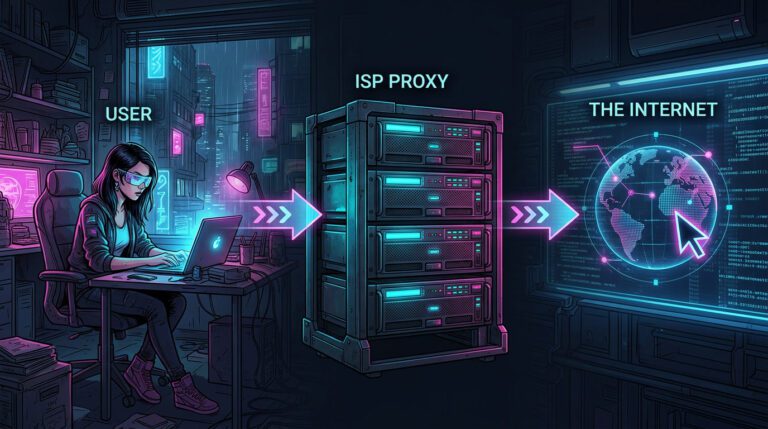

Let’s Start With The Simple: What Is An IP Address?
If the Internet were a huge city, then an IP address would be your personal home or apartment. Only instead of “Pushkin St., 10, sq. 5” — a set of numbers like 192.0.2.1. IP stands for Internet Protocol, that is, “network protocol”. It sounds complicated, but in fact it is a number that all devices connected to the network receive. Here is how to find internet protocol little guide.
A computer, a phone, a TV, a refrigerator with Wi-Fi — all this has an IP address, because without it they simply will not find each other in this digital city.
To make it easier to understand:
- IP address = the address of the sender and recipient on the network.
- As on a postal envelope: “from whom” and “where to”.
There are two types of IP addresses:
- External (public IP) is how you are visible from the outside, for example, for websites.
- Internal (private IP) is an address inside your home or office network. For example, the laptop has 192.168.0.100.
If you:
- We opened the website and your external IP sent the request.
- We printed from the phone on the home printer — the internal IP worked.
And now an important remark: your external IP is often the same for the entire apartment, while the internal one is different for each device. Therefore, if you feel that the topic is confusing, you are not alone. We’ve only just started.
Why Are They Looking For Him?
The question is “what is my IP address?” it may seem strange — well, what difference does it make, because the Internet works? But in fact, there may be dozens of reasons for this simple request.
Here are just the most common:
Practical reasons:
- Establish remote access to your computer from another city.
- Configure the router — especially if you need to open ports or set up rules.
- Run a local server so that someone can access your website/game/file.
- Set up a VPN and make sure that the IP has really “changed”.
Game scenarios:
- Organize a network game without centralized servers.
- Check if the IP address has been banned — this is especially important for moderators and cheaters.
Security and control:
- See if the IP is being used by someone else – in case of suspicious activity.
- Check where your account was logged in from (if the service shows the IP).
And finally, curiosity:
- “Why does the site think I’m from Voronezh if I’m in Riga?”
- “Who’s my provider anyway?”
- “Where do I “live” on the Internet?”
In fact, the question “what IP do I have” has become as common as “how much traffic do I have left?” It’s just that now we live in an era where numbers and addresses are almost like a passport. Digital only.
How To Find Out Your External IP Is The Easiest Way
You turn on your laptop, open your browser, and ask Google the eternal question.:
“What is my IP?” — and you get an answer. Instantly.
The Internet is full of websites that instantly show you your external IP address.
Here are the most popular ones:
On the screen, you’ll usually see:
| What Site Shows | What it Means |
|---|---|
| IP-address | Your external address that you use to “access the Internet” |
| Provider (ISP) | An Internet company (for example, Rostelecom) |
| Country / City | IP geolocation may or may not match |
| Browser / OS | The data that the site has “collected” about your system |
Here’s what might surprise you:
- Your city is not displayed correctly — the IP geolocation is inaccurate.
- The provider is not what you think it is. Sometimes the IP belongs to a partner of your real provider.
- Your IP is “someone else’s” — if you use a VPN or proxy.
And from some sites you will even see:
- Response time
- WebRTC and JavaScript support
- Connection type (mobile, cable, etc.)
It’s like visiting a therapist: you just came to find out what your IP address is, and they immediately gave you a diagnosis, temperature, and blood pressure. But it’s better to know than to guess.
IP Inside The Network: How To Find A Local Address
When we talk about an IP address, we most often mean an external one, the one with which you go online. But there is also a second type — local IP, and it is no less important. Especially if you have Wi-Fi at home, a printer, or you want to set up something on your router.
What is it anyway?
The local IP is the address of the device inside your home (or office) network. It usually looks like this:
- 192.168.0.1 is a classic for routers.
- 192.168.0.101, 10.0.0.55, 172.16.0.23 — these can be laptops, consoles, phones, etc.
These IP addresses are not visible from the outside. If you visit the website whatismyip.com — you won’t see this address. Because the local IP lives only inside your Wi-Fi network, and communicates only with its “neighbors”.
Why is it needed?
Here are a few scenarios:
- Configure the router — you go into the browser and write 192.168.0.1, you get to the control panel of the router.
- Print a document from your phone — the printer and smartphone must be on the same network and know the local IP.
- Access to NAS (network storage) — enter the address, and you are already “inside” the disk.
- Network games — when you need to connect to another device on the same network.
We can say that the internal IP is the passport inside the apartment, and the external one is the passport for the street.
Finding IP on Computer Systems
Now let’s figure out how to view the IP manually — without any websites or online services. This is especially useful if you’re setting up a home network, fixing the internet, or just want to find out who’s who on your Wi-Fi network.
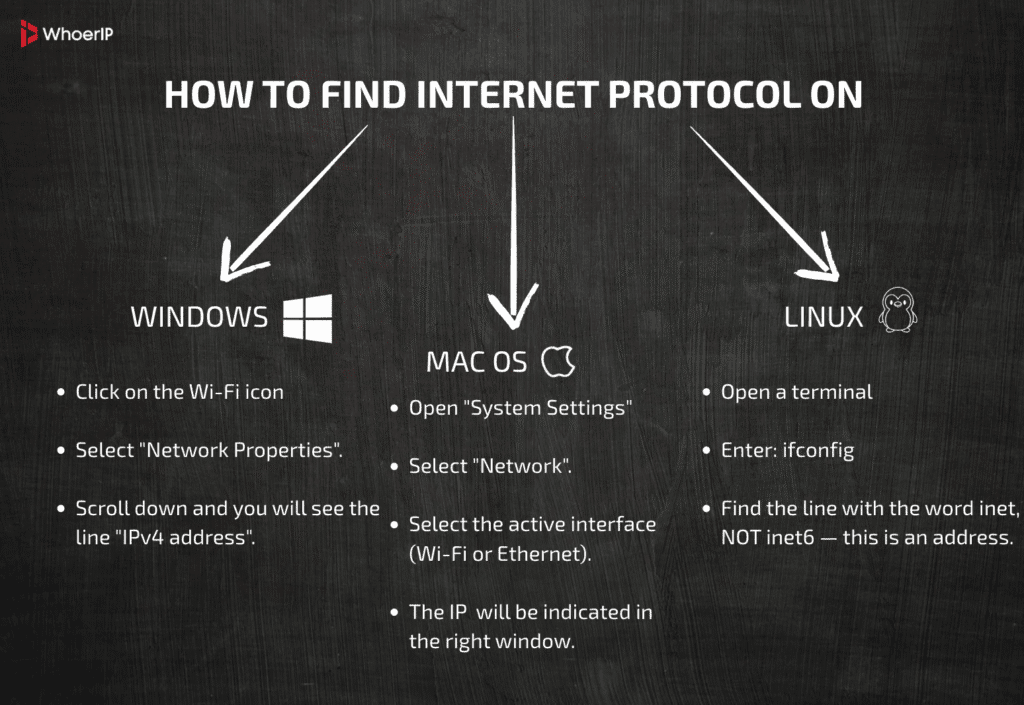
How to Find Internet Protocol On Windows
Method 1: through the interface
- Click on the Wi-Fi (or Ethernet) icon → “Network Properties”.
- Scroll down and you will see the line “IPv4 address”.
Method 2: via the command line
- Press Win + R, type cmd.
- In the window that opens, enter: “ipconfig”
- Locate the unit labeled “Wireless LAN adapter” or “Ethernet”.
- There will be a line: IPv4 Address. . . . . . . . . . . : 192.168.0.101
How to Find Internet Protocol On macOS
Method 1: through the menu
- Open “System Settings” → “Network”.
- Select the active interface (Wi-Fi or Ethernet).
- The IP address will be indicated in the right window.
Method 2: through the terminal
- Open the Terminal.
- Enter: ifconfig
- Find the en0 (or en1) block, the inet string is your local IP.
How to Find Internet Protocol On Linux
- Open a terminal
- Enter: ifconfig
- Find the line with the word inet, NOT inet6 — this is an IPv4 address.
Important: do not confuse it with 127.0.0.1 — this is the localhost, the address of itself.
Finding IP On Smartphones: Android And iOS
It’s a little less obvious from the phone, but it’s still easy to find the IP address.
How to Find Internet Protocol On Android
Wi-Fi IP:
- Open “Settings” → “Wi-Fi”.
- Click on the connected network.
- Scroll down to the IP address line (192.168.x.x or 10.x.x.x).
Mobile IP:
- Harder to find directly, easier to access a website like whatismyip.com — and it will show your external carrier IP.
How to Find Internet Protocol On iPhone (iOS)
Wi-Fi IP:
- Settings → Wi-Fi → (click on the active network).
- There will be a block with an IPv4 address — your local IP.
Mobile IP:
- It is also easiest to look at the site in Safari — ipinfo.io or whatismyip.com .
And now the important point:
Your mobile IP address is not always your personal one. Operators often use CGNAT (Carrier-Grade NAT) technology. This means:
- Dozens or hundreds of users may have one external IP address.
- Everyone is “sitting” at the same NAT, like neighbors in the same stairwell.
- You can’t “reach” the phone from the outside because it doesn’t have a unique IP address.
It is also important:
| The script | Where is the IP? |
|---|---|
| Connected to Wi-Fi | the IP is issued by the router, this is the local IP |
| Using the mobile Internet | The IP is issued by the operator, it is an external IP. |
| Using a VPN on your phone | The IP is displayed from the VPN server |
How To Find Internet Protocol Of Someone Else’s Device On Your Network
When there is Wi-Fi at home and there are plenty of devices, sooner or later the question arises: who is on my network? Especially if the Internet has become “slow”, or you just don’t want your neighbors to be freeloading on your router.
Who’s on Wi-Fi?
Usually connected to the same home network:
- Phone numbers,
- laptops,
- televisions,
- consoles,
- robot vacuum cleaners (yes, they also have IP!),
- and suddenly — other people’s devices.
There are two ways to understand who exactly is on the network and what their IP addresses are.
Method 1: The router’s web interface
- Open the browser and enter: 192.168.0.1 (the exact address depends on the router model).
- Enter your username/password (by default, admin/admin or indicated on the sticker).
- Go to the “Connected Devices” / “DHCP Clients” / “LAN Status” section — it has different names.
- There will be a list of:
- Device name.
- IP address (for example, 192.168.0.103).
- MAC address.
- Sometimes even an icon that lets you know who is who.
Method 2: Applications and scanners
If you don’t want to dig into your router:
- Fing (Android/ iOS) is a simple and intuitive IP scanner.
- Advanced IP Scanner (Windows) — scans the entire network and shows active IP addresses.
- Angry IP Scanner (cross-platform, also convenient).
They will show everyone who is physically on your network. And if you don’t recognize a device, it might be time to change your Wi-Fi password.
Why do you need to know?
- Control: make sure that no one else is sitting.
- Setup: know which IP address someone has, for example, to set up access to the camera or printer.
- Security: if you see an unknown MAC, it’s a reason to be wary.
The IP Address Of The Site: How To Find Out Where We Are Connecting To
When we go to the website, everything seems to be simple: I typed example.com , and the page opened. But in fact, the browser connects using an IP address. We just don’t see it — the domain is converted to IP in the background.
But you can find out which IP is behind the site. And sometimes it’s important.
On Windows:
- Open cmd.
- Enter: nslookup ya.ru
On macOS or Linux:
Open the Terminal and write the same commands:
- ping example.com
- nslookup example.com
- dig example.com
Result: you will see a line like:
Name: ya.ru
Address: 87.250.250.242
Here it is — the real IP of the site.
Online services
If you don’t want to access the console:
- whoerip.com/
- ipinfo.io
- dnschecker.org
- yougetsignal.com
They will show:
- The IP of the site.
- IP geolocation.
- Sometimes — all the “neighbors” on this IP (other sites hosted on the same server).
When it is needed
- Setting up a firewall or router.
- IP filtering (if DNS is blocked).
- Checking which server is receiving traffic.
- In diagnostics: if the site is not loading, maybe the server has crashed altogether?
IPv4 vs IPv6 — And Why It Can Be Confusing
Previously, everything was simple: each site and device had one IP address, and it looked like this: 192.168.0.1
This is IPv4, the good old format. A total of 4.3 billion addresses are possible. But the Internet is growing, there are more and more devices, and… there are not enough addresses. That’s why IPv6 appeared.
| Characteristic | IPv4 | IPv6 |
|---|---|---|
| Example | 192.168.1.1 | 2001:0db8:85a3:0000:0000:8a2e:0370:7334 |
| Length | 32 bits | 128 bits |
| Format | Four numbers separated by dots | Eight blocks of hexadecimal numbers |
| Number of addresses | ~4,3 billion | 340 undecillion (almost infinite) |
| Support | Everywhere | Partially (not all providers and sites are available yet |
Why can there be two IP addresses?
You open ipconfig, and there:
- IPv4: 192.168.0.105
- IPv6: fe80::f47b:caaf:3f15:8d15%3
It is ok. Modern devices can use both protocols, depending on the situation.
How do I find out which one is being used?
- If the site is opened via HTTPS, it is most likely IPv4, but increasingly both.
- Check for test-ipv6.com — it will show what is used in practice.
- On the command line when pinging:
- ping ya.ru — IPv4 is used.
- ping -6 ya.ru — IPv6 is used.
Why do you need to know?
- When diagnosing networks.
- When working with hosting and DNS.
- When setting up servers or proxies.
And the main thing is not to be afraid of long IPv6 addresses. It’s just a way to accommodate more devices on the internet.
Why IP Can “Jump” Or Change
You check your IP address on the website, and it’s 185.23.45.67. The next day you log in again, and it’s 185.23.47.89. What’s it? Hackers? A glitch? A conspiracy?
Most likely, it’s a regular dynamic IP.
What Is A Dynamic IP?
Internet service providers (ISPs) do not give every customer a permanently fixed address. They distribute IP addresses temporarily – for the duration of the session or while the device is active on the network. This is called dynamic allocation, and it takes place through the DHCP system (Dynamic Host Configuration Protocol).
How It Works
Imagine: an ISP has a bunch of IP addresses, like numbered parking spaces. When you connect, you are given free time. Disconnected — the address is returned to the general queue. You can get another job tomorrow.
IP address may change:
- After disabling/enabling the VPN.
- After restarting the router.
- After turning off/on the Internet.
- After the expiration of the IP lease period (DHCP lease).
- When changing the access point (for example, you have connected to another Wi-Fi).
Is This Normal?
Yes. Most home users work with a dynamic IP — it is cheaper for the provider and more convenient for the user.
But if you need a stable IP (for example, for remote access or a server), then you need a static IP, and this is already a separate service from the provider. To find out more about dynamic and static IPs you can read our article about this.
When Changing The IP Address Is A Reason To Think
Sometimes a constant change of IP may indicate:
- An unstable network (often the session breaks).
- Problems with the router.
- The use of a “gray scheme” by the provider (for example, CGNAT).
If the IP changes every 5 minutes, this is a reason to check the settings or call support.
Anonymity And IP: Who Can See What
An IP address is not a passport, but it is a digital footprint that you leave every time you visit a website, watch a video, send an email, or play online. But what can you really find out by IP?
What The Site Recognizes
When you access the site without any proxy/VPN:
- Your external IP,
- An approximate city or region (by IP geolocation),
- The name of the provider (for example, “MTS” or “Beeline”),
- Sometimes — the type of connection (mobile, corporate, home).
Example: you go to the store’s website — it “sees” that you are from Kazan, and shows ads in Tatar. It’s not spying, it’s just by IP.
The provider is the main observer. He can:
- See all your DNS queries (what you were looking for),
- Know which sites you connected to and when,
- Sometimes — even to see what exactly you were watching (if there is no encryption).
That is why in some countries (for example, in Russia, the USA, and China), providers are required to store these logs and provide them to government agencies upon request.
IP Doesn’t Mean Total Transparency
Important: Your IP address does not tell you your name. It just shows that there was traffic from this address. But the site where you logged in under your name can link the IP and account.
What Changes When Using VPN / Tor / Proxy
If you turn on the VPN:
- The site sees the IP of the VPN server, not yours.
- Geolocation is different.
- The name of the provider is different (for example, “M247 Europe SRL” instead of “Rostelecom”).
It’s the same with Tor or HTTP proxies – they hide your real IP by substituting another one. You know your real IP anyway, but the world doesn’t.
However: the provider still sees that you are connected to a VPN or Tor. He just doesn’t know what exactly you’re doing inside. And you want to find someone’s IP address – feel free to check our article.
How to Find Internet Protocol Conclusion: It’s Easy
It seems to be simple: an IP is an “address” on the Internet. But the deeper you dive, the more layers there are.
Now you know:
- that the IP can be external and local,
- that it can change and even be not only one,
- that it can be used to find out the region, provider, and activity,
- and that it can be hidden using a VPN or Tor.
But the main thing is to understand why you’re looking at this address at all. If you’re just playing a game, you probably don’t care. But if you are a server administrator, an active Tor user, an IT specialist, or just want to control security, knowing your IP address is the first step.
Understanding an IP address is like knowing where your mailbox leads: you may not go there every day, but at some point it’s important.
So it’s easy to find an IP address, but figuring out what it means, who it’s available to, and why it’s needed at all is already part of true digital literacy. And, to be honest, it’s even a little exciting.
Frequently Asked Questions
How to find my internet protocol address?
...Which internet protocol is used to transmit encrypted data? To find your internet protocol (IP) address, on Windows, open Command Prompt and type ipconfig. On macOS or Linux, open Terminal and type ifconfig or ip a....
What is internet protocol?
Internet Protocol (IP) is a set of rules for routing and addressing data across networks.
How to check my internet protocol?
To check your IP, use ipconfig (Windows), ifconfig, or ip a (macOS/Linux).
What is internet message access protocol?
Internet Message Access Protocol (IMAP) is an email protocol that lets users access emails stored on a server.
What is internet protocol version 6?
Internet Protocol Version 6 (IPv6) is the latest IP standard, using 128-bit addresses to replace IPv4 and support more devices.
What is internet protocol version 4?
Internet Protocol Version 4 (IPv4) is the older standard, using 32-bit addresses (e.g., `192.168.1.1`).
Which internet protocol is used to transmit encrypted data?
HTTPS (HTTP over SSL/TLS) and VPN protocols like IPsec are used to transmit encrypted data over the internet.