
If you’ve searched “iOS emulator for PC” more than once this week, you’re not alone. Apple simply makes running iOS on Windows harder than most people expect.
A true iOS emulator for PC that accurately recreates both Apple hardware and software almost doesn’t exist. That’s mostly because Apple’s ecosystem is tightly controlled. Still, there are practical alternatives: iOS simulators, cloud testing platforms, virtualization tools, cloud Macs, and cloud phones that let you run, preview, or test mobile workflows from a PC without buying a Mac.
Each option serves a different purpose. Developers may need tools like Smartface, Appetize.io, or a cloud Mac with Xcode. QA teams may prefer BrowserStack or pCloudy because they provide access to real iOS devices. Cloud phones solve a slightly different problem: they don’t emulate iOS, but they let users access separate mobile environments from a PC for session testing, account workflows, mobile behavior checks, and multi-device management.
There’s also the privacy and fingerprinting angle. Anti-detect browsers don’t run iOS apps, but they can make websites read your browser as if it were an iPhone-like device. If that’s your use case, a quick check with a tool like WhoerIP can show what your current setup is already exposing, including IP, DNS behavior, and browser fingerprint signals.
👉 Below, we’ll break down which iOS emulator for PC options actually work in 2026, which tools are only useful for basic previews, when cloud phones make sense, and which solutions you should avoid.
What is an iOS emulator for PC ?
An iOS emulator for PC is software that tries to recreate the iPhone or iPad environment on a Windows machine, so you can run, preview, or test iOS apps without owning Apple hardware. That’s the pitch, anyway.
Here’s the catch nobody puts in the headline. Apple’s chips, its boot chain, and its signing system are proprietary, locked down tight, and not something you can legally or technically replicate on a generic PC. So when a website promises a “100% accurate iOS emulator,” treat that claim with a healthy dose of skepticism. What you’re usually getting is one of three things: a software-only simulator, a cloud-hosted real device you’re controlling remotely, or an ARM virtualization platform built for serious testing work.
None of that makes the category useless, though. Far from it. Developers preview layouts with these tools daily. QA teams catch UI bugs before a build ever reaches a real device. Marketers and privacy-conscious users lean on a different flavor entirely, and we’ll get to that.
Emulators and simulators get used interchangeably online, which causes half the confusion around this topic. If you want the full breakdown of what an IP address has to do with any of this (spoiler: quite a bit, once you get into browser-based tools), our guide on What Is an IP Address? Everything You Need to Know is worth a look.
Emulator vs. Simulator: the difference nobody explains clearly
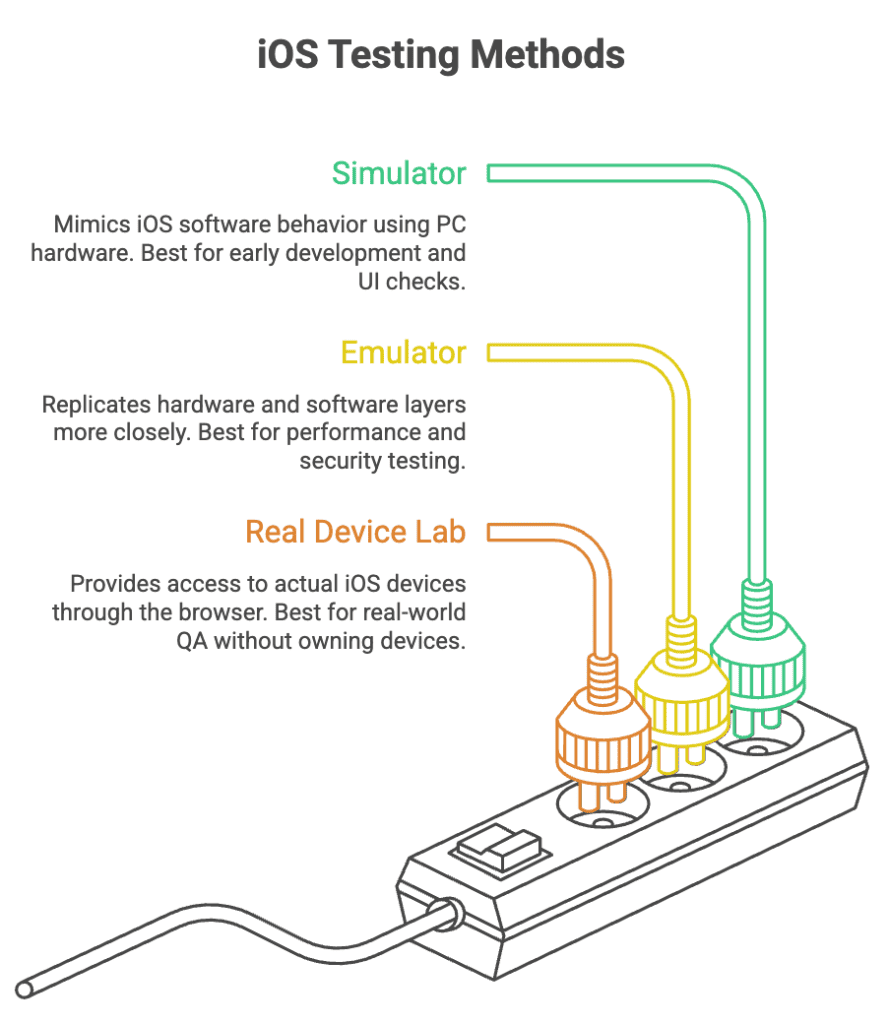
A simulator mimics iOS software behavior using your own PC’s hardware. An emulator (in the strict sense) tries to replicate both the hardware and the software layer, which is a much heavier lift and far closer to how a real device behaves.
Why does this matter to you, practically speaking? Because a simulator is fast, lightweight, and great for checking how a button looks or whether text wraps correctly. It’s not going to tell you how your app performs on actual Apple silicon under load. An emulator, or a virtualization platform like Corellium, gets you closer to production-level accuracy, but it costs more, takes more setup, and honestly, is overkill if you just want to peek at a layout.
Quick way to think about it: simulators for early development and demos, real devices (or ARM virtualization) for anything touching performance, security, or compliance. Cloud-hosted real device labs sit somewhere in between, giving you actual hardware access through your browser.
Best iOS emulator for PC: top tools compared for 2026
Here’s the shortlist that actually holds up. We tested claims against what each vendor currently offers and skipped anything that’s abandonware or a thinly disguised ad.
| Tool | Best For | Platform | Price/Type |
| Smartface | Native iOS/Android development | Windows, Mac | Paid, free trial |
| Corellium | Security research, deep virtualization | Browser (cloud) | Paid, enterprise-focused |
| Appetize.io | Demos, quick app previews, sharing links | Browser, any OS | Freemium |
| BrowserStack App Live | Real-device QA testing | Browser | Paid |
| pCloudy | Automated QA across many devices | Browser | Paid |
| MacInCloud | Full Xcode access via remote Mac | Browser | Paid, hourly or monthly |
| iPadian | Casual iPad-style interface, light apps | Windows | Free / paid upgrade |
Not exhaustive, but it covers every realistic use case: building an app, testing one, demoing one, or just poking around out of curiosity.
A closer look at the best iOS emulator for PC options in 2026
Smartface
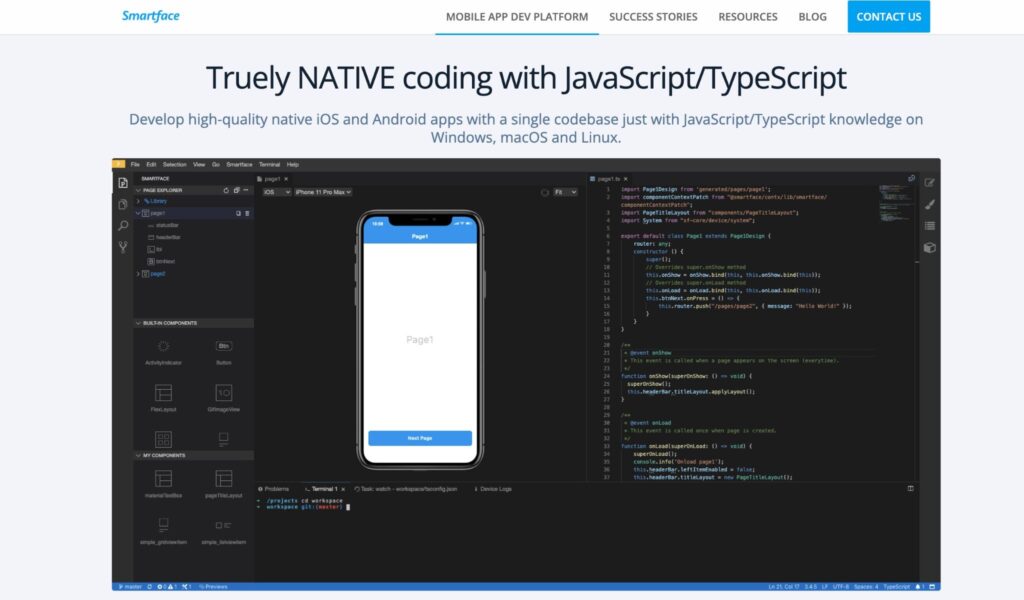
Smartface is the closest thing to a genuine iOS development environment on Windows. It supports Swift, Objective-C, React Native, and several other frameworks, plus a WYSIWYG editor that makes UI work faster. If you’re building an iOS app but don’t want to buy a Mac, this is a good place to start.
Corellium
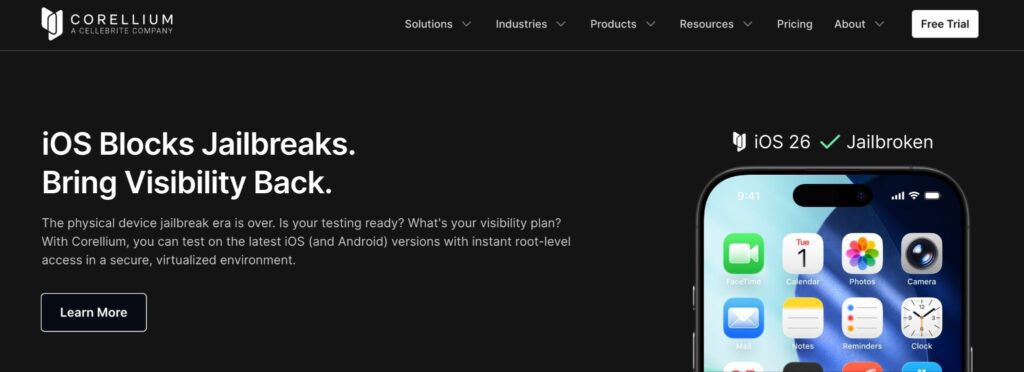
Corellium is not built for casual users. It virtualizes ARM-based iOS instances, making it a strong option for security researchers and teams doing deep vulnerability analysis. It is powerful, technical, and usually priced for enterprise use.
Appetize.io
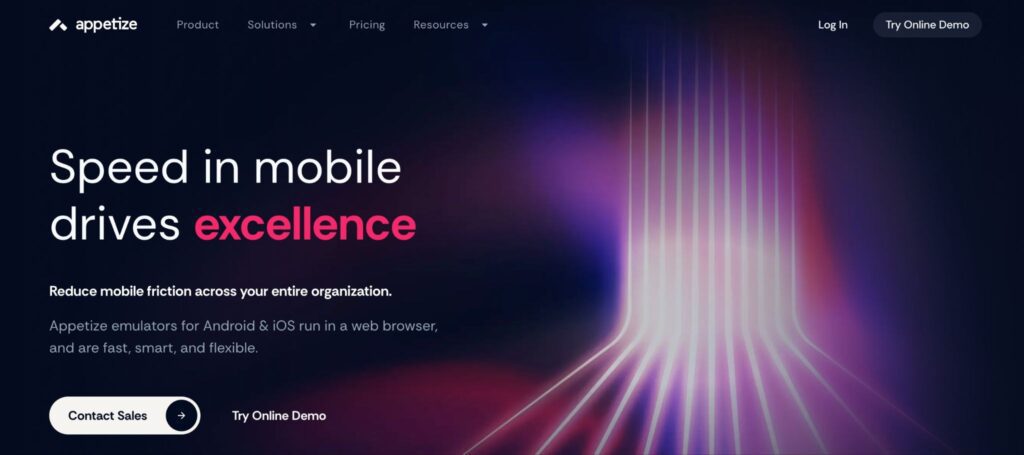
Appetize.io runs directly in the browser, requires no installation, and is easy to share with clients or teammates. It works well for quick demos and lightweight testing, but it does not accurately simulate hardware features like GPS, camera, or device sensors.
BrowserStack app live and pCloudy
BrowserStack App Live and pCloudy give you access to real physical iOS devices through a browser. This removes much of the accuracy concern because you are testing on actual devices. The main tradeoff is cost, so these platforms usually make more sense for QA teams than solo hobbyists.
MacInCloud
MacInCloud lets you rent a real Mac in the cloud, including access to Xcode. It is not really an iOS emulator for PC, but it solves the same core problem: you can work with iOS tools from a Windows machine without owning a Mac.
iPadian
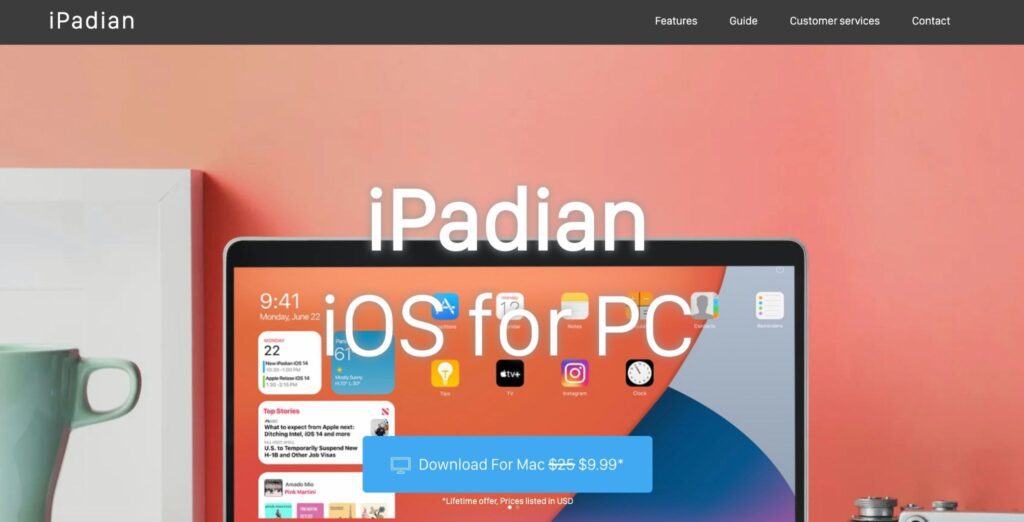
iPadian is where expectations need to be realistic. It gives you an iPad-style interface through Adobe AIR and can be fun to explore, but it does not run real App Store apps and should not be used for serious app testing. Treat it as a visual experience, not a development tool.
iOS emulator for PC: pros and cons before you choose one
Before you pick one, here’s the honest tradeoff across the whole category, not just one vendor.
| Pros | Cons |
| No need to buy Mac hardware just to preview an app | Can’t access the real App Store or DRM-protected apps |
| Cloud tools let you share demos with a link, no install | Hardware-dependent features (Face ID, Apple Pay, NFC) don’t work |
| Great for catching UI bugs early, before real-device QA | Performance numbers won’t match an actual iPhone |
| Several solid free or low-cost options exist (Appetize.io, iPadian) | Some third-party downloads bundle malware or ask for odd permissions |
| Browser-based options work across Windows, Mac, and Linux alike | Graphics-heavy games generally run poorly or not at all |
What an iOS emulator for PC still can’t do
No iOS emulator for PC, no matter how polished the marketing, gives you full App Store access, Face ID, Apple Pay, or graphics-heavy native gaming performance. Apple’s proprietary hardware and secure enclave features simply don’t exist on a Windows machine, and no amount of software cleverness changes that.
This trips people up constantly. Someone downloads an emulator expecting to play a demanding iOS game at full settings, or log into iMessage, and walks away disappointed. It’s not the tool’s fault, not exactly. It’s a hardware wall that software can’t climb.
What you can reliably do: preview UI layouts, test basic app logic, demo builds to stakeholders, run lightweight games, and get a general feel for the iOS interface. That’s a genuinely useful list. Just don’t stretch your expectations past it.
How to choose the right iOS emulator for PC
Start with the honest question: what are you actually trying to do? Building an app calls for Smartface or, frankly, a Mac. Demoing a build to a client points straight at Appetize.io. Security research means Corellium, full stop. And if you just want to see what the iOS interface feels like out of curiosity, iPadian will scratch that itch without costing you anything.
A few practical filters worth applying before you commit:
- Does it need to run on Windows specifically, or would a browser-based cloud tool work just as well?
- Are you testing UI only, or do performance and hardware features actually matter for your use case?
- What’s your budget, realistically, once free trials run out?
- Do you need to share results with teammates or clients, or is this a solo project?
Final thoughts
There’s no single, perfect iOS emulator for PC, and honestly, there probably never will be given how locked down Apple keeps its ecosystem. What there is, though, is a mature toolbox: Smartface for building, Appetize.io for demoing, Corellium for serious research, MacInCloud when you just need the real thing remotely.
Figure out which bucket you actually fall into, pick the matching tool, and skip the ones promising more than any software running on non-Apple hardware can realistically deliver.
Frequently Asked Questions
Is it legal and safe to use an iOS emulator on PC?
Yes, using a legitimate iOS emulator or simulator for testing and development is legal and generally safe. Where things get risky is downloading pirated apps or attempting to bypass Apple's kernel protections through emulation, both of which can violate Apple's terms of service and, depending on what you're doing, local law.
Can you run real iOS apps without a Mac?
You can preview and lightly test many iOS apps without a Mac, using tools like Appetize.io or Smartface. What you generally can't do is access the official App Store, download DRM-protected paid apps, or use hardware-dependent features like Face ID and Apple Pay, since those depend on Apple's proprietary secure hardware.
Do iOS emulators support the App Store?
No, not in any legitimate or reliable sense. Apple's App Store is tied to signed, hardware-verified Apple devices, and no Windows-based tool can legally replicate that verification chain.
What's the difference between an emulator and a simulator?
A simulator replicates iOS software behavior using your PC's own hardware, which is fast but less accurate for performance testing. An emulator attempts to replicate both hardware and software, aiming for closer fidelity to a real device, though true iOS hardware emulation remains technically impossible outside Apple's own chips.
Are there privacy or security risks with these tools?
Some, yes, particularly with unofficial third-party downloads that bundle unwanted software. Stick to established vendors, and if privacy is your actual goal rather than app testing, an anti-detect browser is a safer, more purpose-built solution than a generic emulator download.