You may think LinkedIn private mode makes you invisible. It does not!
LinkedIn private mode can hide your name when you view someone’s profile, but it does not make your browser, IP address, device, VPN, proxy, or behavior disappear from the internet. That difference matters.
If you use LinkedIn for recruiting, sales research, competitor research, market mapping, or account management, private mode can be useful. But if you assume it protects your whole identity, you may miss the signals that websites can still use to understand your connection, location, browser, and device.
👉 This guide explains what LinkedIn private mode actually does, what it does not hide, and what you should test before relying on it.

What is LinkedIn private mode?
LinkedIn private mode is a profile viewing setting that hides your identity from other LinkedIn members when you visit their profiles.
Normally, when you view someone’s profile, they may see your name, headline, and profile link in their “Who viewed your profile” section.
With private mode turned on, your visit appears as something like:
- “LinkedIn Member”
- “Someone on LinkedIn”
- A private profile viewer
👉 In simple terms: LinkedIn private mode changes what another user sees about your profile visit. It does not turn LinkedIn into an anonymous browser.
👉 Need to manage multiple LinkedIn accounts on mobile? Read this guide to see how cloud phones can support cleaner account separation and smoother mobile workflows.
Check your setup before you trust the LinkedIn private mode
Before you assume you are browsing privately, test the signals outside LinkedIn too. Private mode may hide your name from another LinkedIn user, but your browser and network can still reveal useful technical information.
Run a quick check on WhoerIP before logging into sensitive accounts or testing a VPN/proxy setup.
Check:
- Your visible IP address
- VPN, proxy, or TOR status
- DNS leaks
- WebRTC leaks
- IP blacklist status
- Browser and device fingerprint
- Location mismatch
- Anonymity signals
Mini experiment:
- Open WhoerIP without a VPN or proxy.
- Note your IP, DNS, WebRTC, timezone, and browser fingerprint signals.
- Turn on your VPN or proxy.
- Test again.
- Compare whether your IP changed, whether DNS still points to your real ISP, and whether your browser timezone matches your proxy location.
A clean-looking LinkedIn session can still have a messy technical footprint.
Before relying on LinkedIn private mode, run an IP, DNS, WebRTC, and fingerprint check on WhoerIP to see what your browser is still exposing.
👉 Need to browse, test, or manage accounts from a different region? Learn how to change your IP address to another country and create a more location-consistent setup.
How LinkedIn private mode works
LinkedIn gives users profile viewing options. The exact wording may change, but the options generally work like this:
| Setting | What other people may see |
| Your name and headline | Your full profile identity |
| Private profile characteristics | Limited information, such as job title or industry |
| Private mode | “LinkedIn Member” or anonymous viewer |
Private mode affects the visibility of your profile visit to another LinkedIn member. For example, if you view a recruiter’s profile in private mode, the recruiter should not see your name in the profile viewer list. If you view a competitor’s employee profile, they should not see your exact LinkedIn identity from that visit. But private mode is not a security shield. It is a visibility setting inside LinkedIn.
👉 Looking to expand on eBay? See how managing multiple eBay accounts can create more selling opportunities and support revenue growth.
How to turn on LinkedIn private mode
Here is the basic process:
- Open LinkedIn.
- Go to Settings & Privacy.

- Open Visibility.
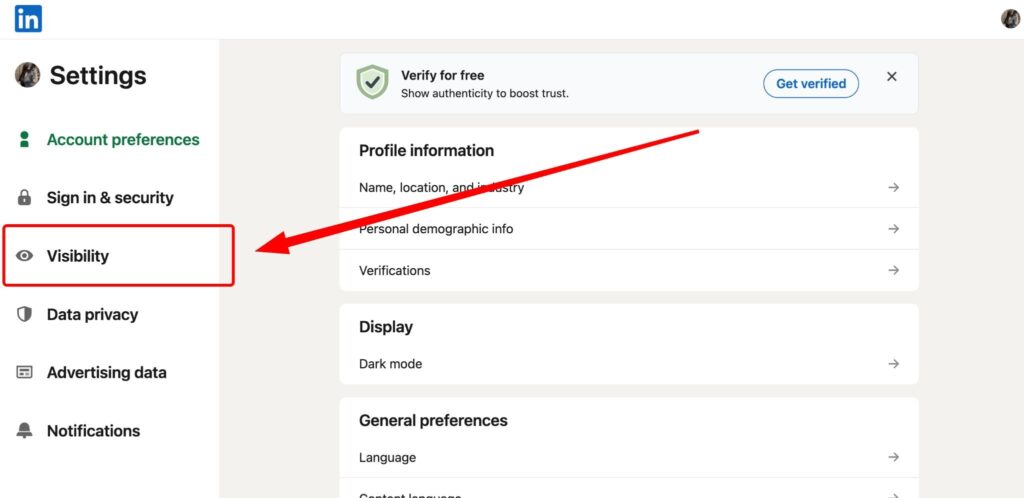
- Find Off-LinkedIn visibility.

- Turn off Profile visibility outside LinkedIn.
One important tradeoff: when you browse in private mode, LinkedIn may also limit what you can see about people who viewed your own profile, depending on your account type and LinkedIn’s current rules. So private mode gives you more privacy as a viewer, but it may reduce your own visibility into profile analytics.
What LinkedIn private mode hides
LinkedIn private mode can hide your personal profile identity from the person whose profile you viewed. It may hide:
- Your name
- Your headline
- Your company
- Your profile link
- Your exact LinkedIn identity in “Who viewed your profile”
This is useful when you want to research without immediately revealing yourself. Common legitimate use cases include:
- Recruiters reviewing candidates discreetly
- Job seekers researching hiring managers
- Sales teams researching prospects before outreach
- Marketers studying competitor teams
- Founders checking investors, partners, or potential hires
- Researchers mapping industries or job roles
Used correctly, private mode is a simple privacy control. Used incorrectly, it creates false confidence.
What LinkedIn private mode does not hide
LinkedIn private mode does not hide everything. It is not the same as a VPN, proxy, secure browser, fingerprint manager, or anonymous network. It does not necessarily hide:
- Your IP address from LinkedIn
- Your device type
- Your browser fingerprint
- Your login history
- Your cookies
- Your account activity
- Your behavior patterns
- Your VPN or proxy quality
- Your DNS configuration
- Your WebRTC exposure
- Your location mismatch
- Your IP reputation
This is where many people get confused. Private mode controls what another LinkedIn user sees. It does not mean LinkedIn, your browser, your network, or other websites cannot see technical signals.
Why LinkedIn may still detect suspicious signals
LinkedIn, like many large platforms, can evaluate more than profile visibility. A login or browsing session may include signals such as:
- IP address
- Approximate location
- Device and browser type
- Cookies and local storage
- Session history
- Login patterns
- Automation-like behavior
- Browser fingerprint consistency
- VPN, proxy, or data center IP usage
- Sudden changes in country, timezone, or device
This does not mean every signal is used in every situation. It means private mode should not be confused with full technical privacy.
For example, if your LinkedIn account usually logs in from Germany, then suddenly appears from a cheap data center proxy in another country with a mismatched browser timezone, that setup may look unusual.
Changing only your profile viewing setting does not fix that.
LinkedIn private mode vs. other privacy tools
| Tool / Setting | What it helps with | What it does not hide |
| LinkedIn Private Mode | Hides your profile visit from other users | Your activity from LinkedIn |
| VPN | Changes your visible IP | Your LinkedIn profile-view status |
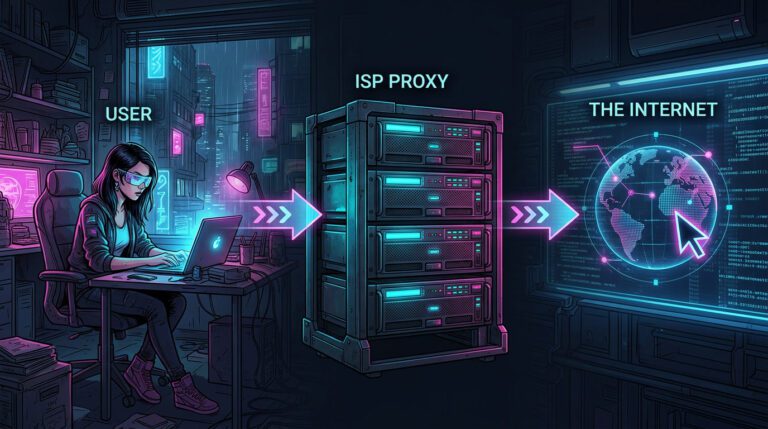
| Proxy | Routes traffic through another IP | Your LinkedIn identity |
| DNS leak protection | Reduces DNS exposure | LinkedIn profile visibility |
| WebRTC leak protection | Reduces browser IP leaks | LinkedIn profile visibility |
| Antidetect browser | Manages browser fingerprints | LinkedIn account activity |
| Residential proxy | Uses regular-looking IPs | LinkedIn profile-view identity |
When LinkedIn private mode is useful
LinkedIn private mode is useful when your main concern is profile-view visibility. Good use cases:
- You want to research someone before contacting them.
- You do not want competitors to see your name.
- You are comparing profiles for hiring or sales research.
- You are browsing quietly during job search.
- You are checking market roles, teams, or company structures.
In these cases, private mode does what most users expect: it hides your identity in the viewer list. But if your concern is account security, multi-account separation, proxy quality, or browser fingerprint consistency, private mode is only one small piece.
What to fix if your setup looks suspicious
Here is a simple troubleshooting flow.
If your IP location is wrong
Change VPN server or proxy location. Then test again.
Make sure the IP country, city, timezone, and account activity make sense together.
If DNS leaks
Change DNS settings, enable VPN DNS leak protection, or use a VPN/proxy setup that handles DNS correctly. Then retest.
If WebRTC leaks
Adjust browser settings, use a browser with stronger WebRTC controls, or disable unnecessary WebRTC exposure if your workflow allows it. Then retest.
If the IP is blacklisted
Use a cleaner IP. For teams that need residential proxies, NodeMaven can be relevant because proxy quality, IP reputation, and geo-matching can affect CAPTCHA and block risk. This does not guarantee access, but cleaner and better-matched IPs may reduce unnecessary friction.
If the fingerprint is inconsistent
For legitimate multi-account workflows, profile isolation matters.
Multilogin can be relevant when you need separate browser profiles, controlled fingerprints, and consistent account environments. This may help reduce mismatches between browser, cookies, timezone, proxy location, and device signals.
Do not use tools to abuse platforms, spam, or bypass security rules. Use them for privacy testing, QA, account safety, and legitimate operational separation.
Real use cases: when LinkedIn private mode is not enough
Use case 1: private mode with a mismatched setup
LinkedIn Private Mode is on, so other users may only see you as “LinkedIn Member.” But behind the scenes, the setup can still look inconsistent:
- Proxy IP is in the United States
- Browser timezone is Asia/Ho_Chi_Minh
- DNS still uses the local ISP
- WebRTC shows local network signals
- Proxy IP appears on blacklist checks
Private Mode hides your name from profile owners. It does not fix IP reputation, DNS leaks, WebRTC exposure, or fingerprint mismatches.
Use case 2: private mode with a consistent setup
A cleaner setup keeps the signals aligned:
- IP location matches the expected region
- DNS does not reveal the real ISP
- WebRTC does not expose unexpected IP data
- Browser timezone matches the IP location
- Browser language and behavior look consistent
- IP has no obvious blacklist issues
This still does not guarantee full anonymity. But it creates fewer contradictions, making issues easier to spot and fix.
👉 Tip: Run a before-and-after test on WhoerIP whenever you change VPN, proxy, browser, or device settings.
Final takeaways
LinkedIn private mode is useful, but narrow. It helps hide your identity from other LinkedIn users when you view their profiles. It does not hide your IP address, browser fingerprint, DNS resolver, WebRTC exposure, cookies, login history, or account behavior. Before trusting any privacy setup:
- Check your visible IP address.
- Test VPN or proxy status.
- Look for DNS leaks.
- Check WebRTC leaks.
- Review IP blacklist status.
- Compare IP location with browser timezone.
- Check browser and device fingerprint signals.
- Keep account behavior consistent and legitimate.
👉 Use WhoerIP as a quick diagnostic checkpoint before assuming your setup works.
Frequently Asked Questions
What does LinkedIn Private Mode mean?
LinkedIn private mode is a profile viewing option that allows you to hide your identity when you are viewing someone else’s profile. LinkedIn may display you as an anonymous LinkedIn member, instead of displaying your name, headline and profile link. It can be used for stealth research, recruiting, sales prep or job hunting. But LinkedIn private mode only changes what other members see in the profile viewer lists. It does not conceal your IP address, browser fingerprint, cookies, login history or technical connection signals from sites.
Does private mode on LinkedIn hide my IP address?
No, LinkedIn’s private mode is not the same as a VPN or proxy. It doesn’t change your IP address or hide your network connection. It only affects how your profile visit appears to another LinkedIn user. To find out what IP address websites can see, test your setup with an IP checker. You also need to check if your VPN or proxy leaks DNS, exposes WebRTC data, uses a blacklisted IP, or creates a location mismatch with your browser settings.
Can people see that I viewed their profile in LinkedIn private mode?
They may see that an anonymous or private LinkedIn member viewed their profile, but they should not see your exact name and profile details from that visit. The result depends on LinkedIn’s current visibility settings and account behavior. Private mode is useful when you do not want your identity shown in “Who viewed your profile.” But it does not mean your session is anonymous to LinkedIn itself or invisible from a technical privacy perspective.
Is LinkedIn private mode the same as anonymous browsing?
No. LinkedIn private mode is not the same as anonymous browsing. It hides your identity from another member’s profile viewer list, but it does not hide your browser, IP address, VPN status, proxy quality, device fingerprint, cookies, or behavior patterns. True privacy testing requires checking multiple signals, including IP, DNS, WebRTC, blacklist status, browser timezone, and fingerprint consistency. Private mode is a LinkedIn visibility feature, not a complete anonymity system.
Why do I still get CAPTCHA when using LinkedIn private mode?
CAPTCHA is not always caused by your behavior. Sometimes it starts with your IP, VPN, proxy, browser fingerprint, location mismatch, or unusual session history. LinkedIn private mode does not fix those technical signals. If CAPTCHA keeps appearing, test your IP reputation, DNS leaks, WebRTC leaks, and browser fingerprint. A blacklisted IP, data center proxy, mismatched timezone, or inconsistent browser profile can increase friction even when private mode is enabled.
Should I use a VPN or proxy with LinkedIn private mode?
It depends on your goal. If you only want to hide your name from profile viewers, LinkedIn private mode may be enough. If you are testing privacy, location, QA flows, or legitimate multi-account environments, a VPN or proxy may be part of your setup. But you should test it carefully. A poor VPN or proxy can create DNS leaks, WebRTC exposure, blacklist issues, or location mismatches. Changing your IP without checking other signals can make your setup look less consistent.
Can LinkedIn detect browser fingerprints?
Large platforms can use technical signals to understand sessions, devices, and risk patterns. Browser fingerprinting can include signals such as user agent, screen size, fonts, timezone, language, WebGL, canvas, and other device or browser details. LinkedIn private mode does not manage these signals.