
Why You Need And How To Find Roku IP Address
Sometimes knowing the device’s IP address is not a “hack” or a whim, but a practical necessity. You’re looking for how to find my Roku IP address because you want to connect a remote controller, configure port forwarding for remote access, debug network issues, link your device to a static DHCP server, or just understand why streaming is buggy. The IP is the “home address” of your set-top box on the local network; knowing it, you can ping the device, open logging, check the availability of services and understand which of the devices “creates” lags in Wi-Fi.
Long story short, you can find your Roku IP address inside of the app, on your mobile phone, with or without the remote, through the router and computer.
A few practical scenarios where an IP Roku is needed:
- Diagnostics: Ring/trace shows packet loss or high ping to Roku.
- Static IP: if you want a media server (for example, Plex) to always “see” the same prefix, assign static lease on the router.
- Remote management: Special utilities and scripts for smart home integration sometimes access the device’s local IP.
- Search for network problems: when the stream breaks, it is useful to understand on which subnet and which IP the console is hanging.
Important: do not publish the IP address in public places — the local address itself is not dangerous, but its combination with vulnerable services can create a risk. And one more thing: if you plan to provide a serial number to support, remember that how to find a Roku IP address by serial number is usually not directly matched by the end user; Roku technical support can help only after verifying the owner.
How To Find My Roku IP Address Through the Device Settings
The easiest and most reliable way to find out the address is to look directly at the console. Manufacturers make this available specifically so that the user can quickly obtain diagnostic data.
How to do it step by step:
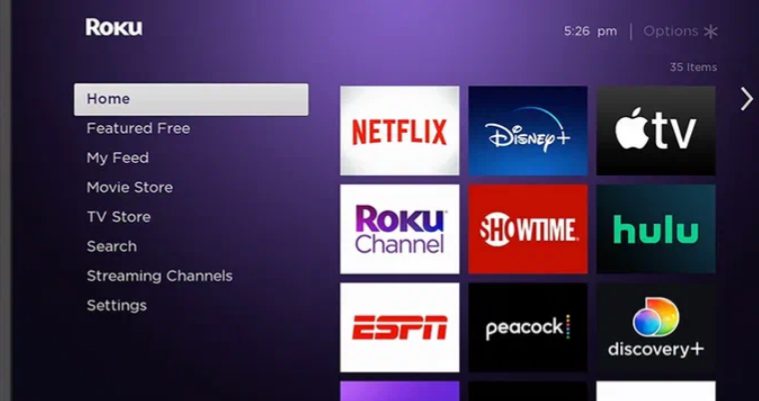
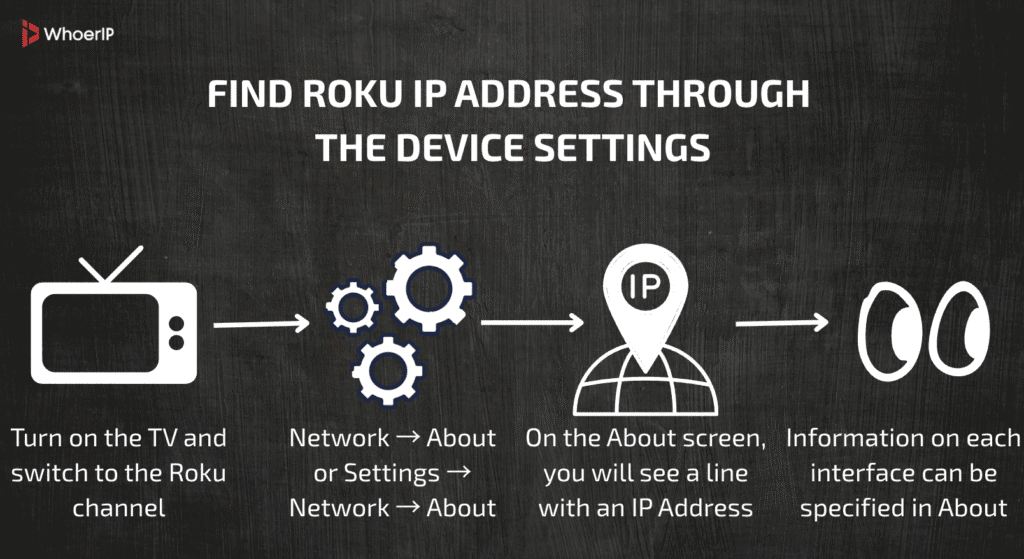
- Turn on the TV and switch to the Roku channel (home screen).
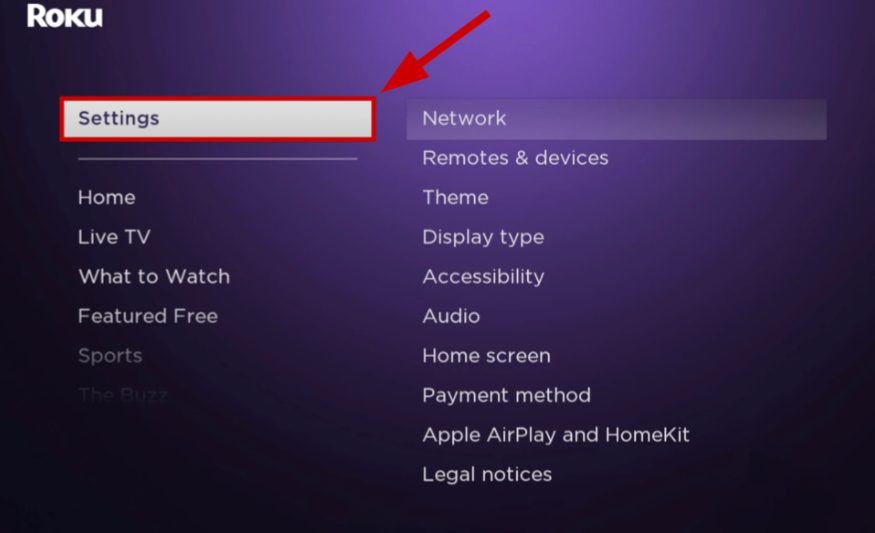
- Go to Settings → Network. Depending on the version, the menu can be Network → About or Settings → Network → About.
- On the About screen, you will see a line with an IP Address — usually IPv4 (for example, 192.168.0.34). The MAC Address, network name (SSID), and sometimes IPv6 address are also displayed there.
- If you have several adapters (rarely, but it happens: built-in Wi-Fi and Ethernet via the adapter), information on each interface can be specified in About.
Useful tips:
- If the “IP Address” field is empty or 0.0.0.0 is shown, the console has not received an address from DHCP: check the Wi—Fi connection, restart the router and the Roku itself.
- If you see the IP, but the device is not responding, try restarting it (Settings → System → System Restart) and re—check the address.
- This method is the safest, because it does not require logging into the router and does not use third—party tools; it is ideal when you are next to the TV and are asking “how to find the ip address on Roku” literally.
Some users may even have trouble finding their IP address on Windows which can be crucial at times. Feel free to check our article about it.
How To Find Roku IP Address With The Roku App
If the set—top box is physically unavailable (for example, it is in another room), the official Roku mobile controller is a quick way to find out the IP. The main condition: The smartphone must be on the same Wi-Fi network as the Roku.
How it works:
- Install and open the official Roku app (iOS/Android). Allow access to the local network if the application requests.
- The application will display a list of available devices on your network. Click on the desired device. It is usually identified by its name (Model/Device name).
- Depending on the version of the application: either the IP address is immediately visible in the device information, or there is a Device info/About button where it is shown. Sometimes the application does not show the IP directly, but it allows you to open advanced settings or send diagnostics from which you can extract the address.
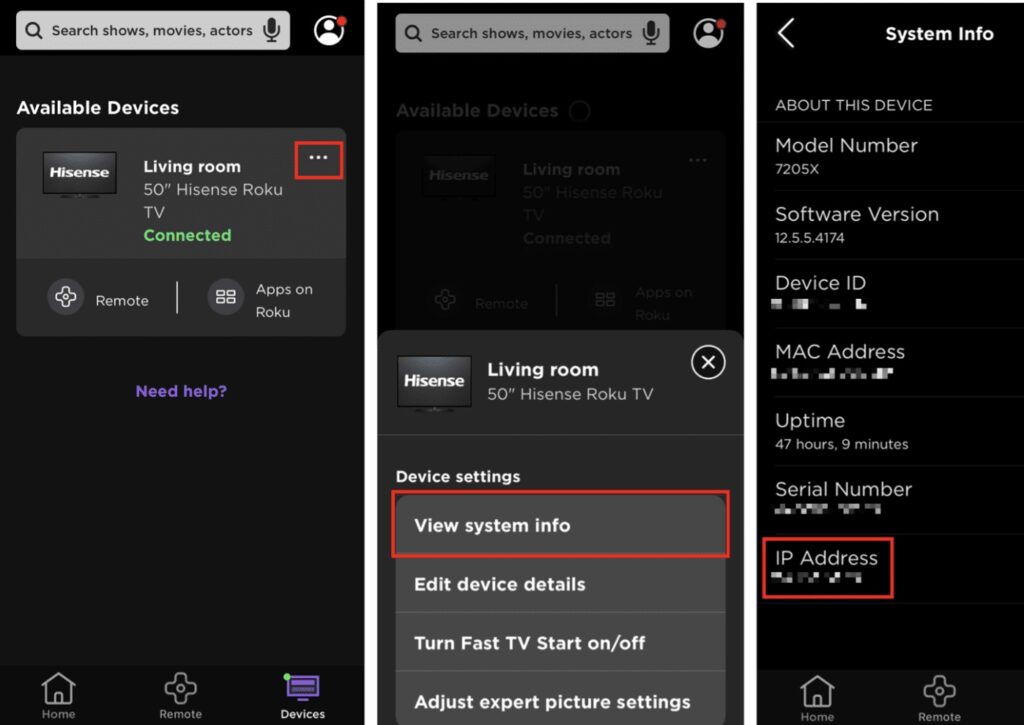
If the app does not see Roku:
- Make sure that your smartphone is connected to the same Wi-Fi subnet (sometimes the guest living room network and the main network are separated, which is a hindrance).
- Disable VPN on your phone — VPN blocks local discovery.
- Restart the application and try “Scan for devices” again.
Why this is useful when asking “how to find an ip address on Roku”: the mobile method is convenient when the set-top box is at the other end of the house, and you want to quickly get an IP address without access to the router. At the same time, you stay within the official, secure Roku tools — no third-party scanners and no risk.
Look Up IP In Your Router’s Web Interface
One of the most reliable and “clean” ways to find out the address is to log in to the router’s admin panel. This is especially convenient if you do not want to install additional applications and prefer the official way.
How to do it step by step:
- Open a browser on a computer or phone connected to the same network and enter the router’s IP (most often 192.168.1.1, 192.168.0.1 or 10.0.0.1). If you don’t know the address, look up the Default Gateway in your PC/mobile network settings.
- Log in to the admin interface (you have the username/password or on the sticker of the router). If you don’t know the accounting system, ask the person who set up the network, or look at the device’s documentation.
- Look for sections with names like Attached Devices, Connected Devices, Client List, DHCP Clients, or Device List. There, the router shows all active connections and issued DHCP addresses.
- In the list, find a device with a name containing “Roku” or similar (sometimes the model is displayed: Roku-XXXX). If the name is not obvious, match it by the MAC address (it is listed in the Settings → Network → About menu on the console).
- Write down the IP address listed next to this device – this is the answer to the question how to find a roku ip address on your network.
Useful notes:
- Some routers only show the hostname; if you have a separate guest and main network, make sure you are looking at the correct subnet.
- Do not change the router settings unnecessarily: changing the DHCP settings or reconnecting the IP may disrupt the operation of other devices. It is better to assign static DHCP Lease only if you need a permanent IP for Roku.
- If you use a mesh network or a provider with managed hardware, the admin panel may be in the provider’s application – look for a list of connected devices there.
For routers finding their IP address is important too. So feel free to check our article about it.
Use Network Scan Tools On Your Computer Or Phone
When the router does not provide convenient information or the device name is not obvious, network scanners come to the rescue. They quickly find all the active IP addresses in the subnet — a great option for online ip discovery if you are looking for how to find the ip address on Roku.
Recommended tools:
- Fing (iOS/Android) — Simple and visual: shows device names, MAC, manufacturer, and open ports.
- Advanced IP Scanner (Windows) is fast and convenient for your home network.
- Angry IP Scanner (cross—platform) – lightweight and flexible.
- nmap (Linux/macOS/Windows) is a powerful tool for advanced users.
Usage example (nmap):
- First run ipconfig/ifconfig/ip addr to find out your subnet (for example, 192.168.1.0/24), then:
nmap -sn 192.168.1.0/24This is a pinged “discover” operation — it will show all live hosts.
- To view the ports and try to identify the device by services (Roku uses ECP port 8060 for management), you can run:
nmap -p 8060 192.168.1.0/24Finding an open 8060 port often indicates a Roku/Chromecast-like device.
Scanning Tips:
- Disable VPN on the device before scanning — VPN prevents local hosts from being detected.
- Running a scanner on a work network is usually safe, but in corporate or public networks, first get permission — bulk scans may be perceived as suspicious activity.
- Compare the detected MAC addresses with the MAC on the box or in the About menu of your Roku to confidently identify the device.
Use ARP And Command Line Utilities (arp -a / ip neigh)
For those who like the command line, there is a quick and “clean” method: use the ARP table after pinging the subnet. This is especially useful if you already know the Roku MAC address and want to map it to the IP.
The approximate sequence:
- Find out your subnet (Windows: ipconfig, macOS/Linux: ifconfig or ip addr). Let’s say the subnet is 192.168.0.0/24.
- Perform a series of pings over the subnet (on some systems, nmap with the -sn option is more convenient). For simplicity, you can run a ping cycle (Linux/macOS):
for ip in 192.168.0.{1..254}; do ping -c 1 -W 1 $ip & done
wait
(On Windows, you can use third-party scripts or just arp-a after network activity.)
- Look at the ARP table:
Windows: arp -a
Linux/macOS: arp -a or ip neigh
In the output you will see lines like 192.168.0.34 – aa:bb:cc:dd:ee:ff.
- Check MAC aa:bb:cc:dd:ee:ff from MAC Roku (in the About menu or on the device sticker). As soon as you find a match, the IP next to it is the answer to the question how to find a roku ip address.
Why this method is useful:
- ARP shows the IP match of the MAC, and the MAC uniquely identifies the device regardless of its name.
- The method does not require router administrator rights and works well on a local network.
- It is faster and “cleaner” in cases where scanners for some reason do not produce results.
| Method | How It Works | When to Use |
|---|---|---|
| Roku Settings → Network → About | Shows IP and MAC directly on the device | First and easiest option |
| Roku Mobile App | Check device info if on the same Wi-Fi | When Roku isn’t near you |
| Router Admin Panel (DHCP Clients) | Lists connected devices with IP and MAC | Reliable for home networks |
| Network Scanner (Fing, Angry IP) | Scans all active devices in subnet | When Roku name isn’t visible |
| Command Line (arp -a / ip neigh) | Matches IP ↔ MAC after ping | For advanced troubleshooting |
Check DHCP Lease Table Or Logs On Router
Another advanced way is to look into the DHCP lease table of your router. This section shows all current and past IP address issues, as well as their “lease” period.
How it works:
- Go to the router’s admin panel (usually 192.168.1.1 or 192.168.0.1).
- Go to the DHCP section (often called LAN → DHCP Clients, DHCP Lease Table, Active Clients, or simply Logs).
- In the table you will see a list: IP address, MAC address, device name and time of issue.
- Find the line with the name of the Roku or with the corresponding MAC, so you will know exactly the current IP.
Why this method is useful:
- It shows not only the IP, but also the context — when the device received the address and how long the lease will last.
- If the Roku was rebooting, you will see an updated entry with the new time.
- You can check the history: sometimes old IP addresses remain in the logs, which helps with debugging.
For the question of how to find my Roku IP address, this is a great method, especially if there are many devices on the network and the standard client list seems overloaded.
Identify Roku By MAC Address Or Device Name
The name of the device on the network is not always obvious. Sometimes Roku can be displayed as “Unknown” or with a set of numbers and letters. In this case, it is most reliable to search by MAC address.
Where to find a MAC Roku:
- On the box of the device (usually on the back or side).
- In the Settings → Network → About menu.
- On the sticker on the bottom or back of the device.
Then everything is simple:
- In the router’s admin panel or the DHCP table, find the list of clients.
- Check the MAC addresses – as soon as you see a match, the desired IP is indicated next to it.
- Sometimes the device name helps too: many models are displayed as “Roku-XXXX” (where XXXX is part of the serial number).
Why this method works:
- MAC is unique and does not change, unlike IP.
- In networks with dozens of devices, this is a quick way to “isolate” Roku.
- This solution helps with any ip address blacklist check or diagnostic scenario: MAC is the main “passport” of the device.
How To Find Roku IP Address By Serial Number — Contact Support Or Account
The how to find Roku IP address by serial number request is often asked by those who do not have direct access to the network. It is important to understand here that the average user does not have a direct “serial number → IP” function. But there are official workarounds:
- Check your Roku account. If you have registered a device on the website or through a mobile application, information about the model and network parameters can be displayed in the devices section. Sometimes the IP address is indicated there, more often only the serial number is indicated, but the bundle will help when contacting support.
- Contact Roku Support. Please provide the serial number, model of the device, and the approximate time when it was online. Support can give instructions on how to track a device on your network, or suggest diagnostic steps.
- Partner solutions. If the Roku is used in a corporate or hotel network, the administrator can match the serial number with the logs of the DHCP or Wi-Fi controller.
Important: this method will not give you an instant IP, but it helps to officially and securely solve the problem. For situations where you’re thinking “how to find the ip address on Roku” without direct access to the device, contacting your account or support is the only reliable option.
Consider IPv6 Addresses And Multiple Network Interfaces
Today, it is increasingly common for a device to work not only with the usual IPv4 addresses, but also receive an IPv6 address from the provider. If you are looking for how to find a Roku IP address, don’t forget to check the About → Network section in the device menu.: Two types of addresses can be specified there at once.
Features:
- IPv6 looks longer and more complex (for example: 2001:0db8:85a3::8a2e:0370:7334).
- Many modern providers and routers issue it automatically, even if only IPv4 is visible in the client list by default.
- Roku usually uses a Wi-Fi interface, but some models (or when connected via a dock/adapter) can also work with Ethernet.
Why this is important:
- If you are checking the network using a router or utilities, make sure that you see both versions of the address.
- To diagnose connection stability or access settings, sometimes you need to know exactly IPv6.
- Different interfaces (Wi-Fi and Ethernet) may have different IP addresses — do not confuse them.
Troubleshooting When IP Is Missing Or Changes Frequently
Sometimes you don’t see the IP address in the Roku menu, or it changes too often – this is a classic dynamic DHCP problem. There are several solutions in such cases:
- Assign a static DHCP Lease in the router’s admin area. Link the IP to the MAC Roku, and the device will always receive the same address.
- Restart the device and router — it often helps to reset an incorrect DHCP lease.
- Check for conflicts. If two devices on the network receive the same IP, it causes failures. It is easy to notice similar problems in the router logs.
- Manually assign a static IP (if the model and firmware support it), but most often it is easier to manage this through a router.
For users wondering how to find my Roku IP address, stability is as important as the search itself. A permanent IP is convenient for remote access, integration, and diagnostics.
Security And Privacy Considerations When Locating IP
Your IP address is not just a technical number. This is a kind of “home address” of your device on the Internet. Therefore, when working with how to find the IP address on Roku or how to find the Roku IP address by serial number, it is important to keep security in mind.
Recommendations:
- Do not share IP publicly. If you need to send data to support or a friend, use secure channels.
- Guest-a network for guests. If you give access to Wi-Fi to others, create a separate network to protect your Roku and other devices.
- Stay tuned for updates. Routers and Roku receive firmware with security patches. Update them on time.
- Official applications and interfaces. Use only the official Roku App and the router’s admin panel, and not dubious “IP scanners” from unverified sources.
Knowing Roku’s IP gives you convenience, but also responsibility. Excessive openness can lead to vulnerability for your entire network.
| Scenario | Solution | Notes |
|---|---|---|
| IP keeps changing | Set Static DHCP Lease in router | Ensures stable access |
| IPv6 address in use | Check Roku About menu for IPv6 | Some ISPs assign IPv6 only |
| Device not listed in router | Identify by MAC (on box or sticker) | MAC is unique and reliable |
| Lost access completely | Contact Roku Support with serial number | Answer to “how to find Roku IP address by serial number” |
| Privacy concern | Share IP only when needed, use secure Wi-Fi | Prevents unauthorized access |
Quick Checklist For Finding Your Roku IP Address
To summarize, finding the Roku IP address is not a difficult quest, but rather a set of proven steps that can be completed in a couple of minutes. Start with a simple one — the Settings → Network → About menu right on the Roku itself. If the device is not at hand, use the Roku mobile app or look into the router’s admin panel, where your Roku is almost always lit up with IP and MAC in the list of DHCP clients. For more advanced users, network scanners like Fing or the arp -a command will help. And in extreme cases, you can contact support by specifying the serial number, because this is how the question “how to find Roku IP address by serial number” is solved.
Bottom line: there are always several ways, and at least one of them will work — just follow this checklist.
Frequently Asked Questions
How to find Roku IP address?
Go to Settings → Network → About on your Roku device.
How to find my Roku IP address?
Open the Roku mobile app (on the same Wi-Fi) or check your router’s DHCP client list.
How to find the IP address on Roku?
In the Roku menu, under Network settings, the IP address is shown along with MAC and connection details.
How to find IP address on Roku?
Use a network scanner (like Fing or Angry IP Scanner) or run arp -a on your computer while connected to the same network.
How to find Roku IP address by serial number?
Normally not possible directly; contact Roku support with your serial number for diagnostic help.