
So, you’ve decided to dive into the world of Team Fortress 2 – not just to play with randoms on Valve servers, but to enter a specific server where your friends are playing, there is an event or just a pin lower than in hell. And here comes the question: and how to join a server through IP in TF2?
Spoiler: it’s not difficult. But if before you just clicked “find a match”, now you will need to make a couple of clicks more – but it’s worth it.
Why Connect by IP at All?
If you’ve never done this, a logical question may arise – why bother at all?
Here are just a few situations where it’s really useful:
- Your friends have created their own server, and you want to get together – but without “extra passengers”.
- You’ve found a custom server with a cool mode that is not in the regular game.
- You have your own local server (LAN) – to play with friends on the same network.
- You are the server admin and you are testing plugins, maps, and settings.
- You want a normal ping, without wild delay on random Valve servers.
And also – the IP connection gives you a direct entry to where you need to go. Without searching, filtering and waiting – clean, fast and exactly to the target.
What do you need to Join a Server?
The list is minimal, but important:
- Installed Steam and Team Fortress 2
- IP address of the server you want to connect to (for example: 185.233.20.5:27015)
- A little bit of attention (and this guide)
Method 1: How to Join a Server through IP in TF2 with the Console
If you’ve ever played CS, Dota, or TF2 on your own server, you know that the console is a powerful tool.
Here’s how to connect via IP using the console:
Step 1: Enable the Console in the Settings
- Go to the game settings (Options)
- Navigate to the Keyboard tab
- Click on Advanced
- Check the “Enable developer console” option
- Click on OK

Now you can open the console with the ~ (tilde) key, which is located at the top left under Esc.
Step 2: Enter the Connection Command
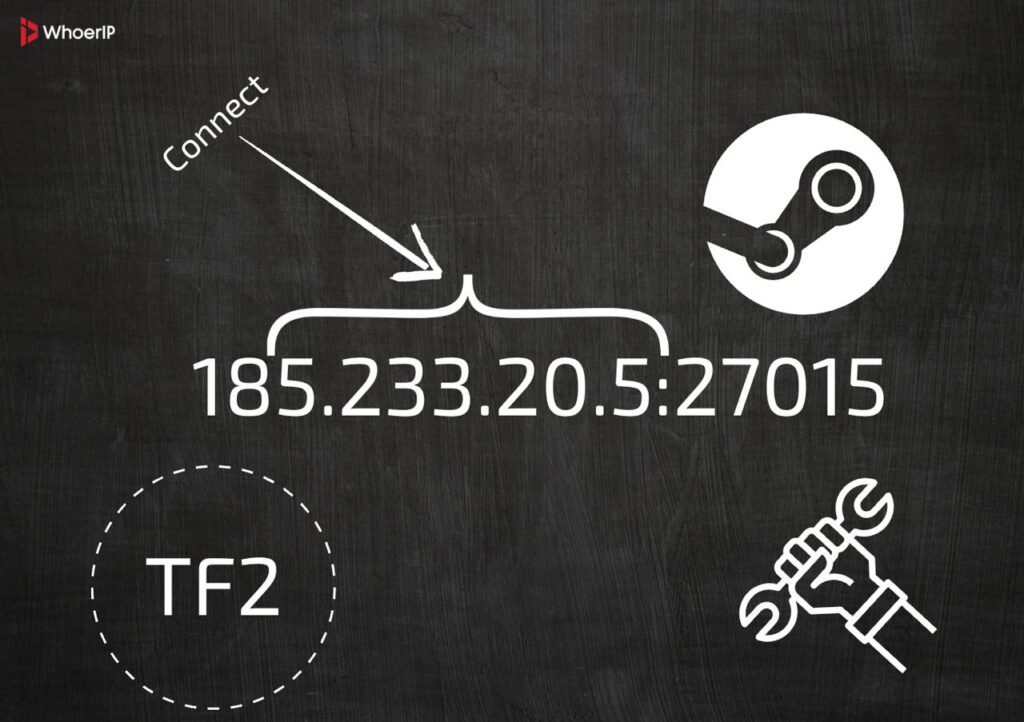
(replace the IP with the one you were given — it must contain a port after the colon)
Step 3: Press Enter and You’re in
If everything goes well, you’ll be instantly transferred to the desired server. If not, check if you’ve entered the IP and port correctly. Sometimes, people forget to include a colon or place a space in the wrong location.
Console Tips
- If the console doesn’t open, check if you’ve enabled it in the settings.
- You can create a shortcut: in Steam, right-click on TF2 → Properties → Set launch options → add -console. This will make the console appear immediately when you start the game.
- You can connect directly from the main menu, without entering combat or settings.
Method 2: Through Favourites
If you want to connect to the server often, this method will save you a lot of time.
Step 1: Open the TF2 Server Browser
- Launch TF2
- In the main menu, click “Find a Game” → “Community Servers”
- In the window that appears, click the Favourites tab

Step 2: Add the TF2 IP manually
- Click “Add Server” at the bottom right
- In the field, enter the IP: 185.233.20.5:27015
- Click “Add this address to favorites”

Done! Now the server will appear in the list, and you can enter it in one click – tomorrow, a month later.
Is it Possible to Connect Without TF2, Directly through Steam?
Yes, if you have Steam Overlay enabled, you can enter the IP even without launching the game:
- In Steam, click on View → Servers from the top.
- Go to the Favorites tab.
- Click on “Add a server” and enter the IP.
- The server will appear in the list, and you can connect to it.
This is useful if you often try different servers and don’t want to launch the game every time to add the IP.
What Should I Do if the Server Doesn’t Connect?
Okay, it happens. Let’s quickly go over the most common reasons:
The IP is Not Working
- You may have made a mistake in the numbers (even one can ruin everything)
- Make sure the port is specified correctly
- Ensure that the server is currently running (yes, it can sometimes be turned off)
Server is Not Responding
- The server may be disabled
- You may be experiencing connection issues
- The firewall may be blocking TF2 (check your settings)
Server Uses Different Class Tables
- This means that the server and your client are on different versions
- Update the game via Steam
- Or write to the server admin to update their build
What if You’re an Admin and Want to Give Your Friends an IP?
If you’ve started your server and want others to connect to it:
- Visit whatismyip.com or simply Google “my IP” and copy the external IP
- Add a port (usually :27015)
- Send your friends the full line: connect YOUR-IP:27015
By the way, if you play with friends and face problems with discord connection, check our “How To Bypass IP Ban on Discord” guide
Don’t forget: in order for the server to be accessible from the outside, you need to forward ports in your router (port forwarding) – otherwise, no one will connect. It sounds scary, but it can be done in 5 minutes.
Useful Commands in the Console (for Dessert)
- status — shows information about the server and players
- retry — reconnects to the last server
- disconnect — leaves the current server
- connect ip:port — connects to a new server
- clear — clears the console
Bonus for the Advanced: Managing Multi-Accounts and Test Sessions
If you’re not just playing, but, for example, leading a TF2 community, testing maps or server mods, you know how important it is to quickly switch between different accounts. Especially if you need to:
- check server access rights from different levels
- observe user behaviour from the first person
- test the balance of maps and plugins from multiple profiles simultaneously
In such cases, you can, of course, manually log out, clear cookies, restart Steam… but why?
Here Multilogin comes in handy — a tool that allows you to run isolated browser (and not only) sessions under different accounts. Whether it’s for a Discord-bot TF2, forums, admin panels, logs, and everything else that usually comes “as a package” with a serious server.
You save time, don’t burn your personal profile, and always keep the situation under control.
Let’s just say that for an average player, this is overkill. But if you’re one of those people who make TF2 lively and interesting, Multilogin will be like a second mouse for you. It’s convenient, flexible, and secure.
How to Join a Server through IP in TF2 Conclusion
Connecting by IP in Team Fortress 2 is not magic or hacking, but a regular feature that few people use for some reason. But it’s worth it.
It gives you:
- Direct access to the desired server
- Targeted game with friends without unnecessary random players
- Stable ping and control over where you play
- The ability to join even a closed or private server
If you are interested in other interesting gaming content feel free to check our “Is SteamRip Safe to Use” article
And most importantly, don’t be afraid to experiment.
Customizing your console, adding a server to your favorites, and trying out your local host can transform you from just a player into someone who truly controls their gaming experience.
In TF2, having your own server or a cozy community is often more important than quick matchmaking.
Frequently Asked Questions
Why can’t I invite friends to a TF2 community server?
Community servers often disable Steam invites to prevent abuse. Use the server’s IP (type status in console) or join via the server browser.
How to make a TF2 server with FreeGameHosting?
Sign up on FreeGameHosting. Select Team Fortress 2, configure slots/map, and launch. Share the IP with friends. (Note: Free hosts may have limits.)
Why can’t you invite people to a private TF2 server?
Private servers (local/listen) don’t support Steam invites—players must direct connect via IP (connect [IP] in console).
How to view people in the current TF2 server?
Open console (~) and type: "status" Lists all players, SteamIDs, and ping.
How to join a TF2 server with IP?
In console (~), type: "connect [IP:PORT]" (Enable console in Options > Keyboard > Advanced.)
How to create a TF2 server?
Quick local server: Launch TF2, open console, type map [map_name] (e.g., map cp_dustbowl). Dedicated server: Download SteamCMD, install TF2 server files, configure server.cfg.
How much does a TF2 server cost?
Free options: Local/listen servers (limited). Paid hosting: ~$5–$15/month for 10–24 slots (e.g., GameServers, Nitrado).
How to add bots in a TF2 private server?
In console (~), use: tf_bot_add [number] [class] [difficulty] Example: tf_bot_add 4 pyro easy